The ability to Pin a Me is a new feature in RX Wizard, available in August 2025. This feature allows a user to pin a case needing special attention to themselves, or someone else.
TABLE OF CONTENTS
- General Workflow
- When Is It Used?
- How to Pin to Me
- Signs a Case is Pinned
- Finding Pinned Cases
- How to Unpin a Case
_____________________________________________________________________________________________________________________________________
General Workflow
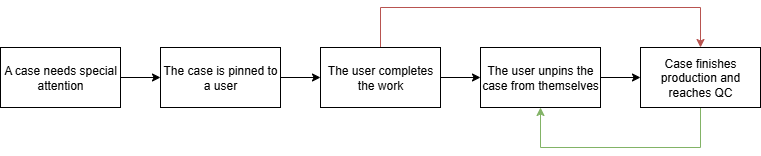
When it is determined a case needs special attention, like for a design approval with a doctor or a specific technician requested to complete the work, the case is pinned to a NEOLab user. Any user can pin any case to any user.
Once the work is completed, the user can unpin the case from themself. Only admins can unpin any case from any user.
If the case is not unpinned before it reaches QC, the QC step will not be able to be completed, ensuring that the special attention item has been completed before the case leaves NEOLab.
When Is It Used?
Pin to Me is notably different from Assign to Me. Where Assigning a Case allows a user to add a case to their queue to Acknowledge, Pinning a Case attaches a case to a user, regardless of the production status.
Pin to Me should be used in instances like the following:
1. A doctor has asked a specific user to help them design the case before manufacturing;
2. A remake case needs to be double checked by a specific user before leaving to return to the office;
3. A very specific manufacturing request has been made on a case, and a certain user in a department must be the one to complete the task.
How to Pin to Me
You can pin a case to yourself, or another user, using any of these methods:
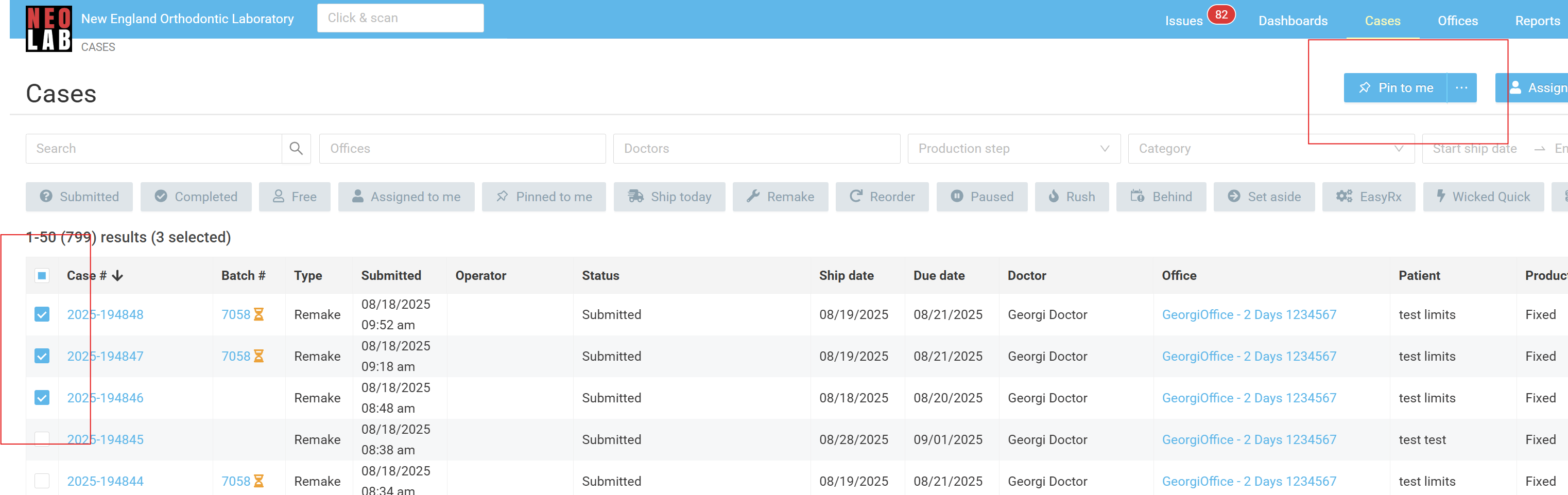
From the main case page, select the case(s) using the checkbox. Then select the Pin to Me button on the top right. Cases will automatically be pinned to yourself.
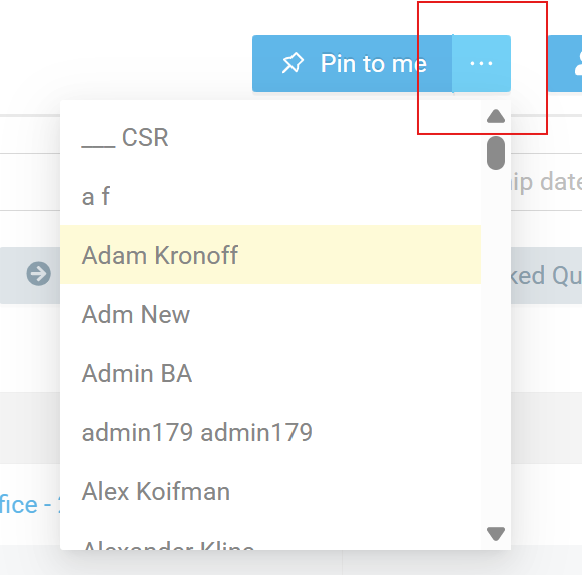
If you need to pin cases to another user, simply click the "..." next to Pin to Me, and select the user's name.
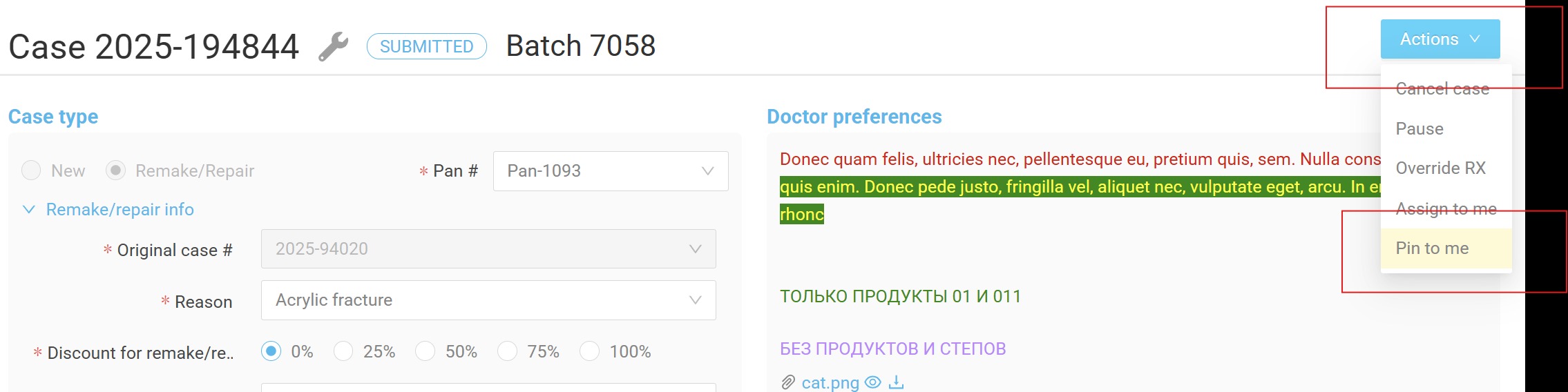
If you are within a case that needs to be Pinned, click on the Actions menu in the upper right and select "Pin to Me".
Signs a Case is Pinned
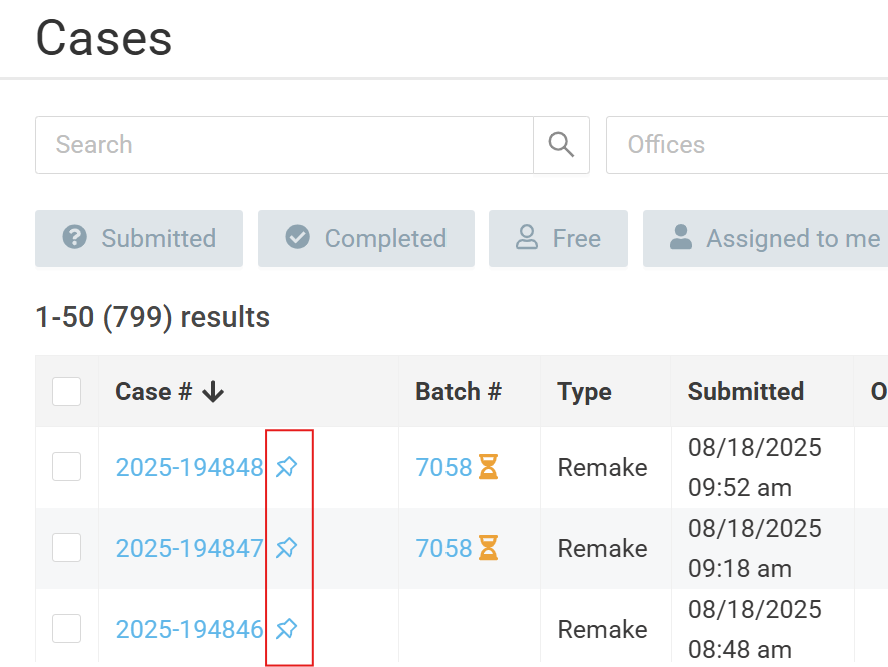
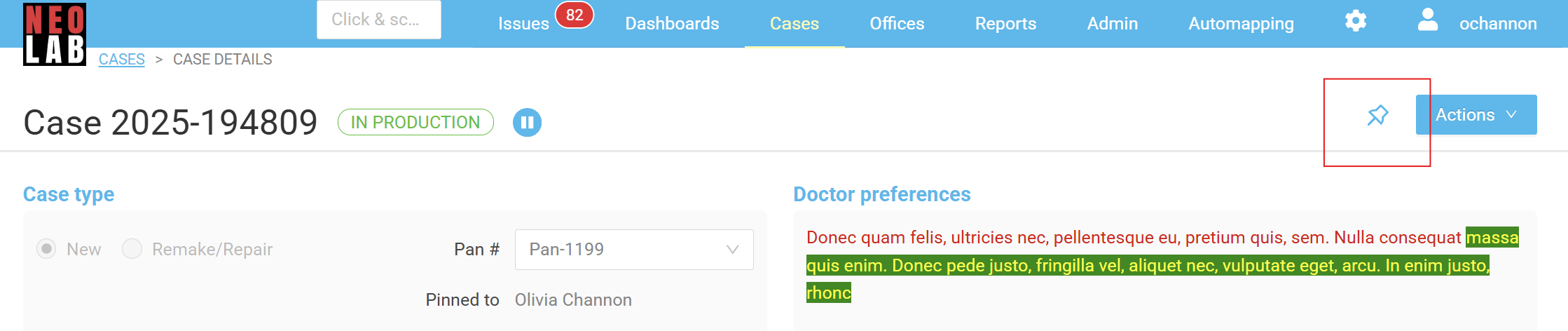
A pinned case will feature a thumbtack icon, which is viewable on the main case page or in the case itself:
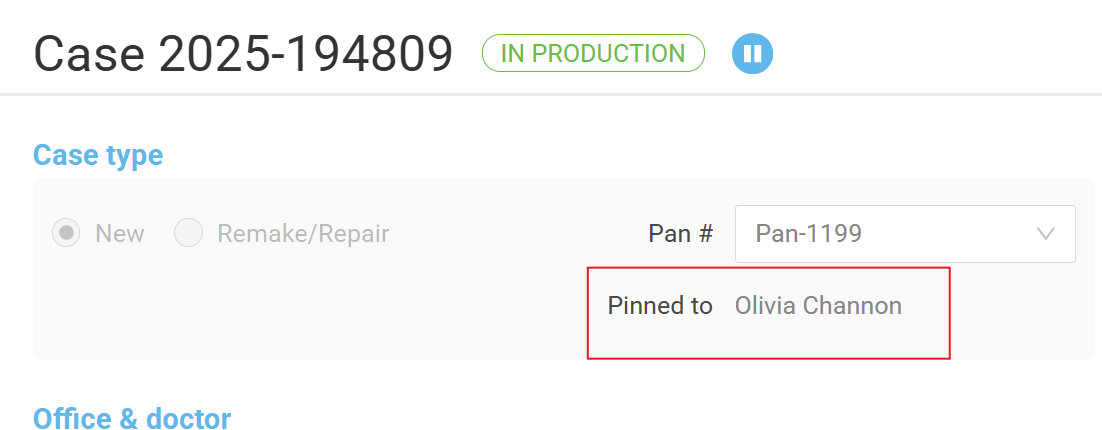
Within a case, you will also see details of who the case is pinned to:
And the details surrounding when the case was pinned, in the Case History:

Finding Pinned Cases
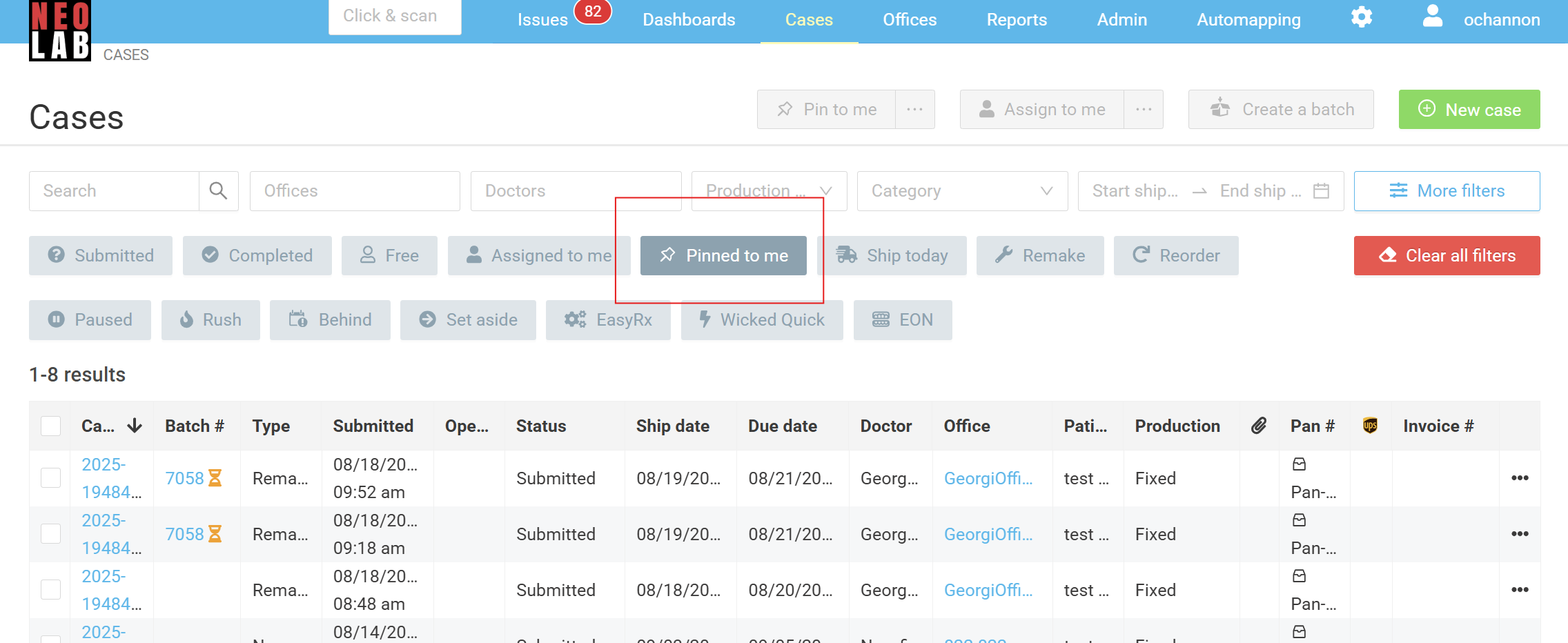
You can quickly locate cases that are pinned to you using the Pinned to Me Quick Filter on the main case page. Simply tap the filter, and you will see results for only cases that are currently pinned to you.
How to Unpin a Case
You may unpin a case from yourself as any user. Admins may unpin a case from anyone.
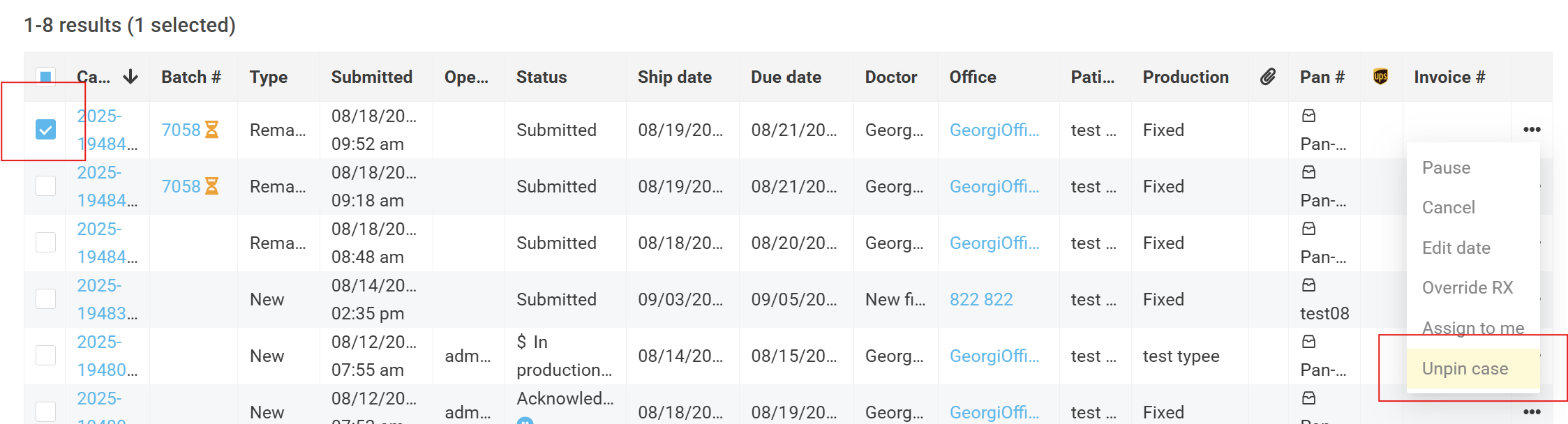
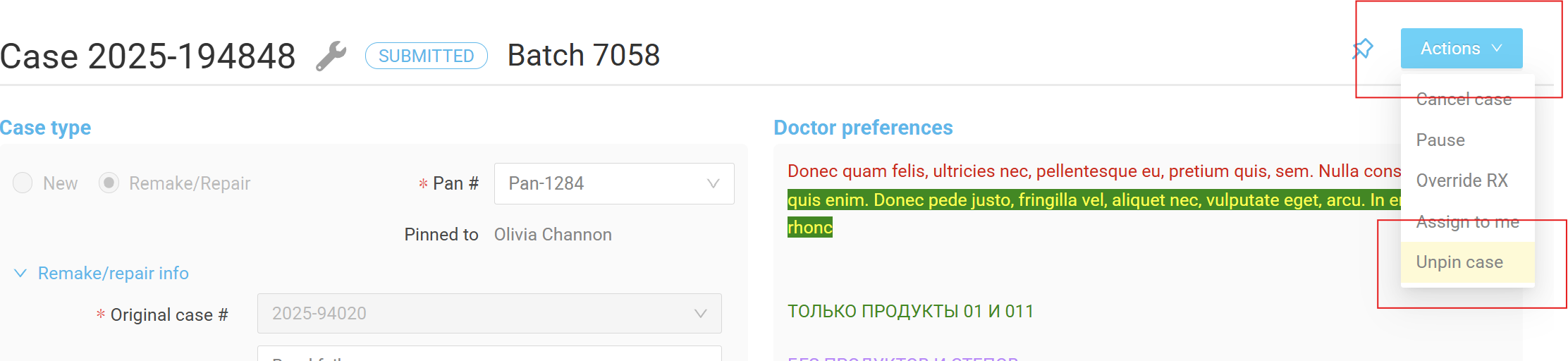
To unpin a case from yourself:
Select a case from the main case page using the checkbox. Select the three dots menu, and select "Unpin".
From within a pinned case, select the Actions menu, and then select "Unpin":
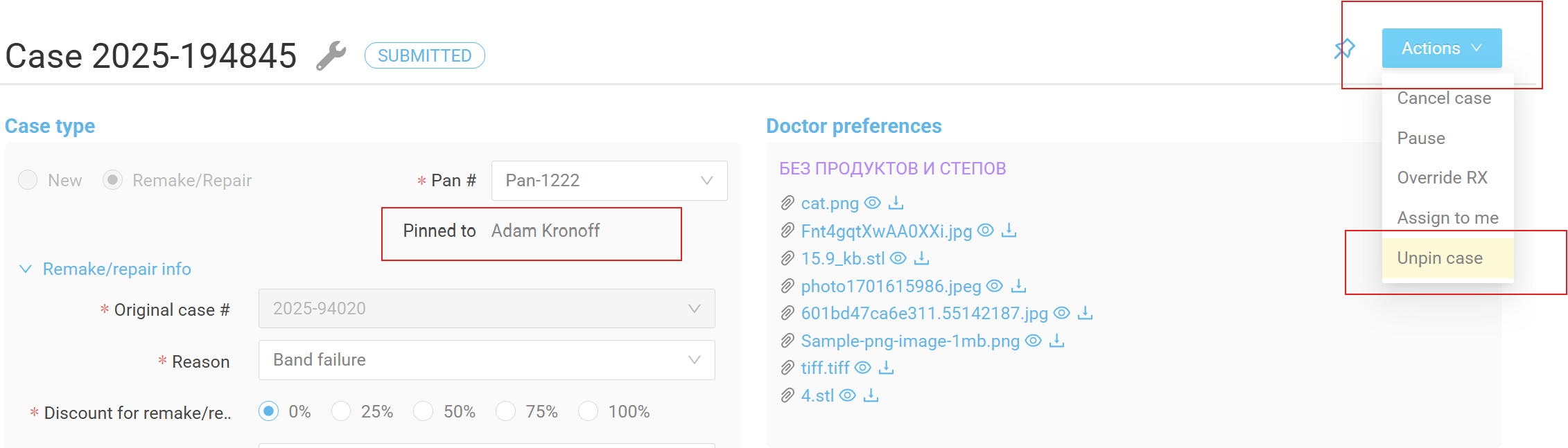
To unpin a case from another user (admins only):
From within a pinned case, select the Actions menu, and then select "Unpin":
Was this article helpful?
That’s Great!
Thank you for your feedback
Sorry! We couldn't be helpful
Thank you for your feedback
Feedback sent
We appreciate your effort and will try to fix the article