The first page you see when logging into RX Wizard is called the Main Case page. This page contains a list of all the cases in the lab, and automatically defaults to showing only cases that are in Submitted, Acknowledged, or In Production case statuses.
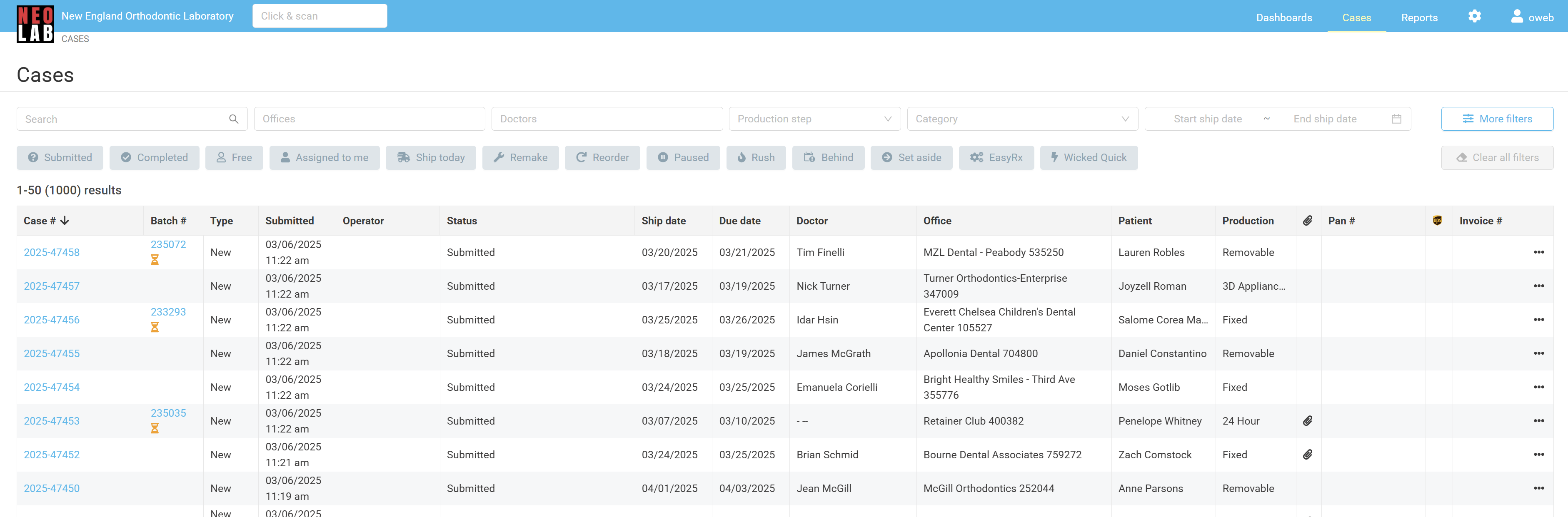
The Main Case page is full of filters that can make searching for your cases easier. You can search by one filter, or in combination by choosing several at a time.
Filters: | |
|---|---|
 | Office Name. Search for and select the office name to filter cases only for this specific office. This will include cases for multiple doctors if the office has more than one provider. You may search by one office, or multiple, in this field. |
 | Doctor Name. Search for and select the doctor name to filter cases only for a specific doctor. This will include cases for multiple offices if the doctor has more than one location they work in. You may search by one doctor, or multiple, in this field. |
 | Production Step. This field will filter results to a specific production step. Cases that are currently on this production step will appear. Cases that have already completed this production step, or have not yet reached it, will not show up. |
 | Category. This field will enable you to search for cases of a certain appliance category, like Expanders, Space Maintainers, or Spring Aligners. |
 | Start / End Ship Date. This field will allow you to choose a date range, and will give you results of cases that are set to ship between the two values. |
 | Submitted. This quick filter will automatically search only for cases in a Submitted status when you click this button. |
 | Completed. This quick filter will automatically search only for cases in a Completed status when you click this button. |
 | Free.This quick filter will automatically search only for cases that are in a Submitted status, and have not already been assigned to another user. |
 | Assigned to me. This quick filter will automatically search only for cases that have been assigned to you. |
 | Ship Today.This quick filter will automatically search only for cases that have today's Ship Date. |
 | Remake. This quick filter will automatically search only for cases that are classified as a Remake case. |
 | Reorder. This quick filter will automatically search only for cases that are classified as a Reorder case. |
 | Paused. This quick filter will automatically search only for cases that are currently paused, waiting for doctor clarification or more information. |
 | Rush. This quick filter will automatically search only for cases that the doctor has chosen to Rush, moving them through production more quickly than a standard case. |
 | Behind. This quick filter will automatically search only for cases that are not current in their production schedule, and have uncompleted steps for a date that has already passed. |
 | Set Aside.This quick filter will automatically search only for cases that have been temporarily held by technicians in their department. These cases are waiting on an answer from a production supervisor. |
 | Easy Rx. This quick filter will automatically search only for cases that were submitted through EasyRx, or have been created in RX Wizard and sent to a connected EasyRx account. |
 | Wicked Quick. This quick filter will automatically search only for cases that are on a 24-Hour Turnaround time, rather than standard lab time. |
The More Filters tab contains even more options. To access this menu, tab the "More Filters" button on the far right-hand side of the screen.
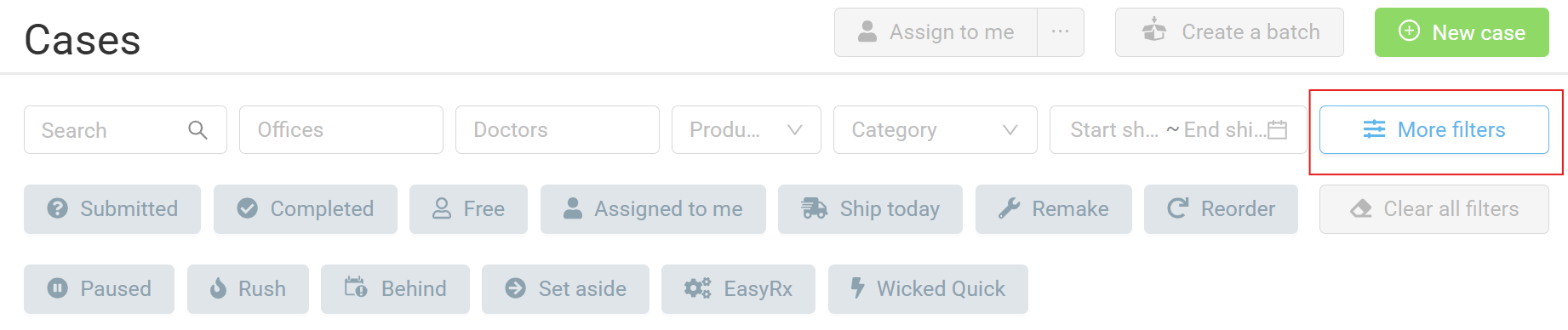
The filters here include:
| More Filters: | |
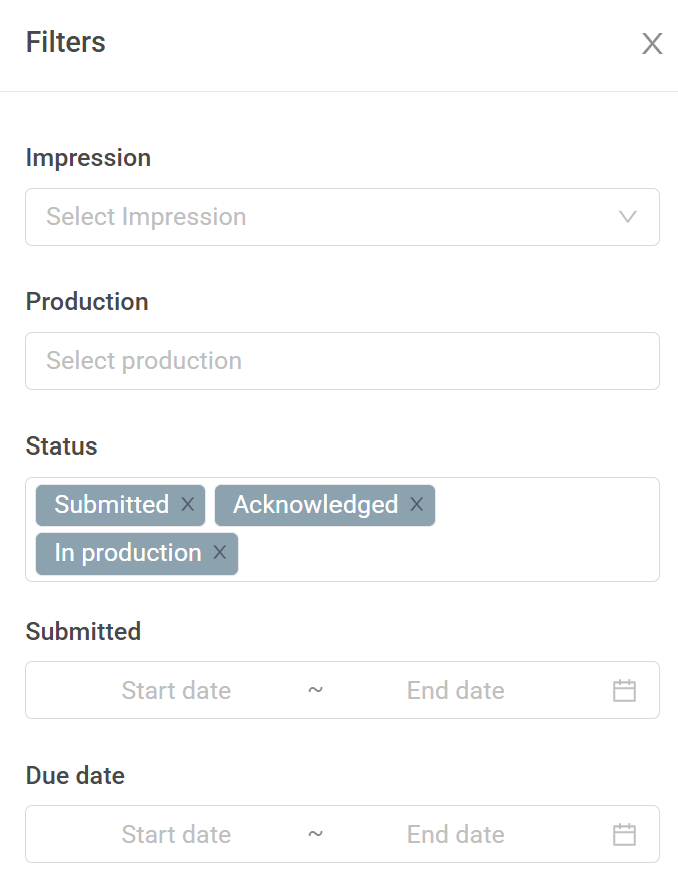 | Impression. Choose from Physical or Digital cases to narrow your search. |
| Production. Choose from case Types to narrow your search. You can choose one or multiple options in this field. | |
| Status. Choose from all the available case statuses, including: Draft, Submitted, Acknowledged, In Production, Completed, and Canceled. You can choose one or multiple options in this field. | |
| Submitted. Choose to show cases submitted within a certain date range, whether or not they are still in that case status. | |
| Due Date. Choose to show cases due within certain date range, whether or not they are still in active manufacturing, or have already been completed. | |
To reset the Main Case View, simply click "Clear All Filters". This will return you to the same default settings as when you first logged in.

Was this article helpful?
That’s Great!
Thank you for your feedback
Sorry! We couldn't be helpful
Thank you for your feedback
Feedback sent
We appreciate your effort and will try to fix the article