There are two main methods of searching for cases in RX Wizard:
- Manual Search Field
- Click & Scan Field
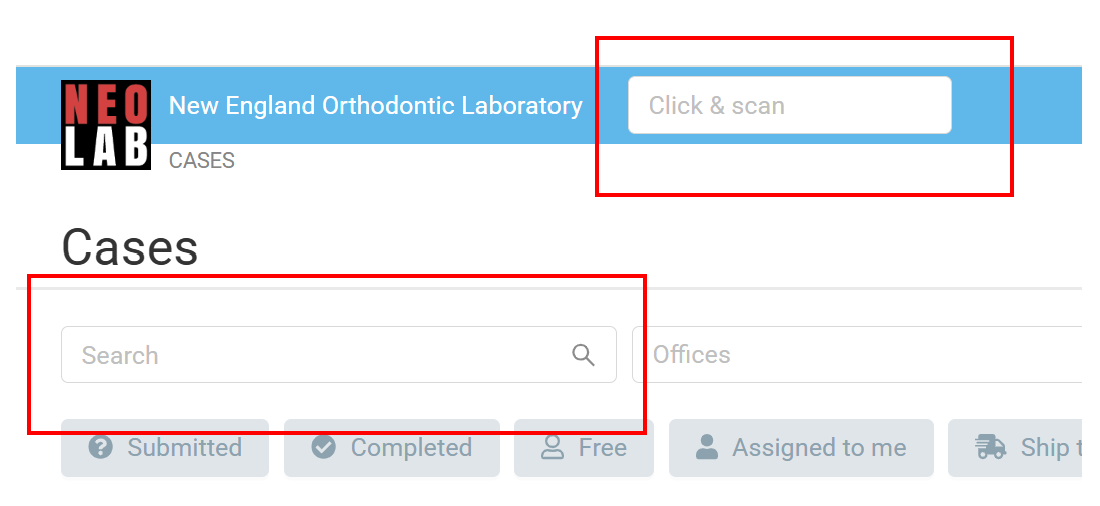
The Click & Scan Field is useful when using a barcode reader. This field will not allow you to slowly type out a case number, and should not be used when typing manually.
To use this field, simply click into the field, and scan the work ticket barcode.
Web Technician Roles:
The Click & Scan field is intended to make working with cases on desktop faster. When using a Web Technician role, using the Click & Scan field will automatically open to the Review page of a case, allowing you quick access to completing production steps.
When you have finished your production step, the mouse cursor will automatically return to the Click & Scan field, allowing you to quickly scan and search for your next case.
CSR, Manager, and Admin Roles:
When using a CSR, Manager, or Admin role, using the Click & Scan field will automatically open to the Edit page of a case. This is to allow for any changes to be easily made to billing, products, ship date, due date, or for adding notes.
To navigate to the Review page, these roles will need to click the "Review" button on the bottom right-hand side of the Edit page.
Was this article helpful?
That’s Great!
Thank you for your feedback
Sorry! We couldn't be helpful
Thank you for your feedback
Feedback sent
We appreciate your effort and will try to fix the article