The first page that opens on the NEOLab RX Wizard Mobile App is the scan page. This is the page that will allow you to search for the case you are about to work on.
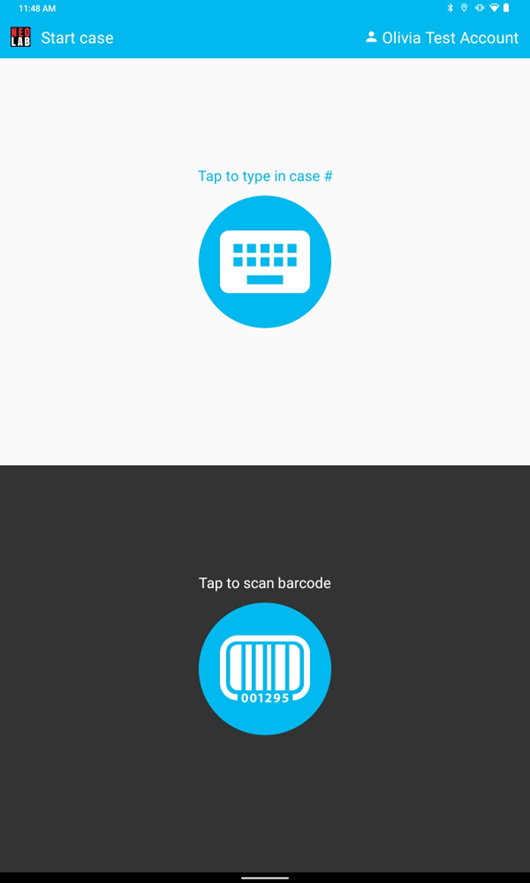
There are two method to search for an open a case on this page:
- Manually type in the case number;
- Scan the upper ticket barcode using the tablet camera feature.
Tap to Type in Case #:
- Tap the keyboard icon in the lighter half of the screen.
- The first four digits of the case ID number will be pre-loaded. (Ex: 2025-)
- Manually type in the remaining digits of the case ID number.
- Press "GO".
- The case will open on the New Rx page.
Tap to Scan Barcode:
- Tap the barcode icon in the darker half of the screen.
- The camera feature will automatically open.
- Point the camera at the top barcode on the work ticket.
- The case will open on the New Rx page.

Was this article helpful?
That’s Great!
Thank you for your feedback
Sorry! We couldn't be helpful
Thank you for your feedback
Feedback sent
We appreciate your effort and will try to fix the article