As technicians complete their work on the physical appliances, they need to record the completion in the production schedule. To do this, they will complete their production step directly on their Tablet.
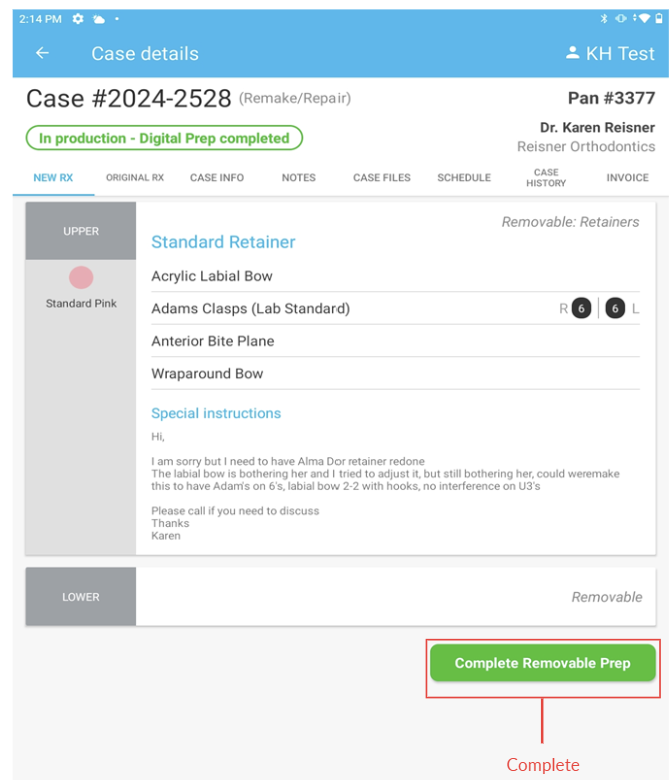
Complete Production Step: This green button is pressed when the technician has finished their work on the actual appliance, and records their name in the production history. Most production steps can be completed in a single tap, but a select few have dedicated Start and Stop buttons.
If you cannot complete the production step on a case you have opened, you may not have been assigned that particular production step, or someone earlier in the production workflow may have forgotten to scan their step.
To complete the production step:
- Tap on the New Rx Tab.
- Tap the green Complete button below the appliance sections.
- Your name and the date will automatically be recorded in the case history and production schedule.
- The step has been completed. The case will close and you will be automatically directed back to the Scan Case Page to search for your next case.
Was this article helpful?
That’s Great!
Thank you for your feedback
Sorry! We couldn't be helpful
Thank you for your feedback
Feedback sent
We appreciate your effort and will try to fix the article