Cases can be paused, or temporarily moved out of active production, if there is a problem with the case or a question that needs to be answered.
TABLE OF CONTENTS
- Pause Reasons
- Pause Workflow
- Unpause Reasons
- Unpause Workflow
- Doctor Notifications
- Internal Pause
- Managing Paused Cases
___________________________________________________________________________________________________________________________
Pause Reasons
There are a number of reasons why a case may be paused:
Reason | Sub-reason | When Would We Use This? |
|---|---|---|
 | Only one scan sent but RX is asking for two | We are missing an arch needed to make the appliance |
| No Scan Available | There is no scan in the portal listed on the prescription and/or in the portals listed in doctor preferences | |
| Other | There is some other one-off reason about the missing scan, and we need to provide details to the office in the text field. | |
 | Bracket Removal Not Available on 24 Hour Essix | Brackets are present on a 24 Hour case |
| 6's Not Fully Captured | The 6's are present in the scan, but not enough to make the appliance listed in the prescription | |
| Bands Present in Scan | Bands are present on the scan, and we are making an appliance on the banded teeth. We can’t guarantee fit. | |
| Wrong arch sent | We need the opposite arch to make the appliance indicated on the prescription | |
| Not enough palate | We don’t have enough palate to make the appliance. Example: a hawley prescription with a horseshoe scan. | |
| Missing Anatomy | We are missing part of the scan needed for the appliance. Example: Clasp the UL7, but the scan is only through the 6's. | |
| Appliance Left in Scan | An appliance was left in the scan, and we’d need to remove it before making the new appliance. We can’t guarantee fit. | |
| 6's Not Fully Erupted | The 6's are not fully erupted, and are required to make the appliance. We can’t guarantee fit. | |
| Other | There is some other one-off problem with the scan, and we need to provide details to the office in the text field. | |
 | No bands available. | The script indicates in banding that “Doctor will provide bands”, and they were not shipped with the physical model or impression. |
| Other | There is some other one-off reason why we are waiting on bands, and we need to provide details to the office in the text field. | |
 | Waiting for returned appliance | We are remaking or repairing an appliance, and it has not arrived yet. |
| Waiting for bands | The script indicates in banding that “Doctor will provide bands”, and they have not arrived yet. | |
| Waiting for model / impression | We have told the office we need a new model and/or impression, and it has not arrived yet. | |
| Other | There is some other material we are waiting for, and we need to provide details to the office in the text field. | |
 | Other | The case is placed on hold. These are usually one-off reasons, like the office is waiting to hear back from the patient. |
 | Waiting on return call | We left a message with the office, and are waiting for a response. |
| Other | We left a message with the office, and needed to include details about the case and/or call in the text field. | |
 | Other | We have questions about the appliance, script, or design details, and need to clarify a question before moving forward. |
 | Other | The case did not pass internal quality control, and was not allowed to leave the lab. |
Pause Workflow
When a problem is found on a case, it is paused using the following workflow:
1. The case is opened.
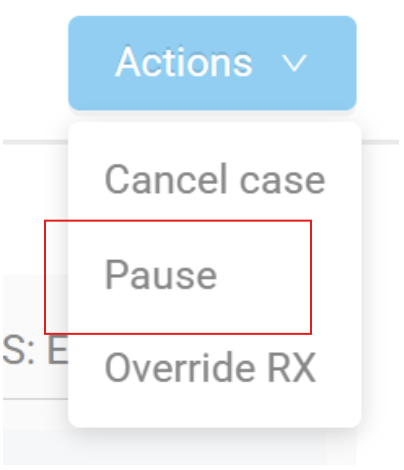
2. From either the Edit Page or the Review Page, the Actions menu is opened in the upper right-hand corner.
3. "Pause" is selected".
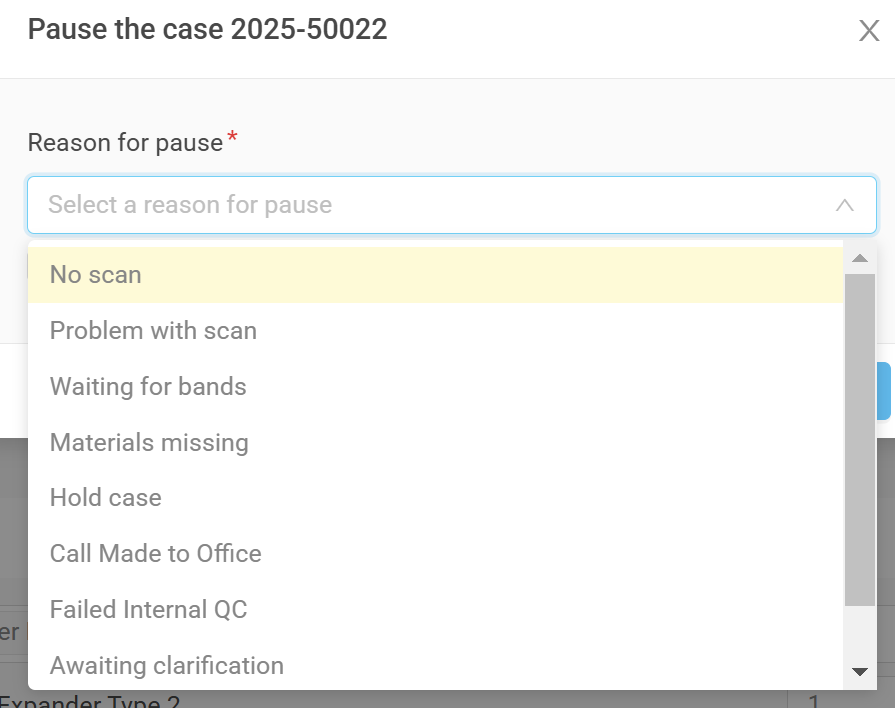
4. In the menu that opens, first the Pause reason is chosen.
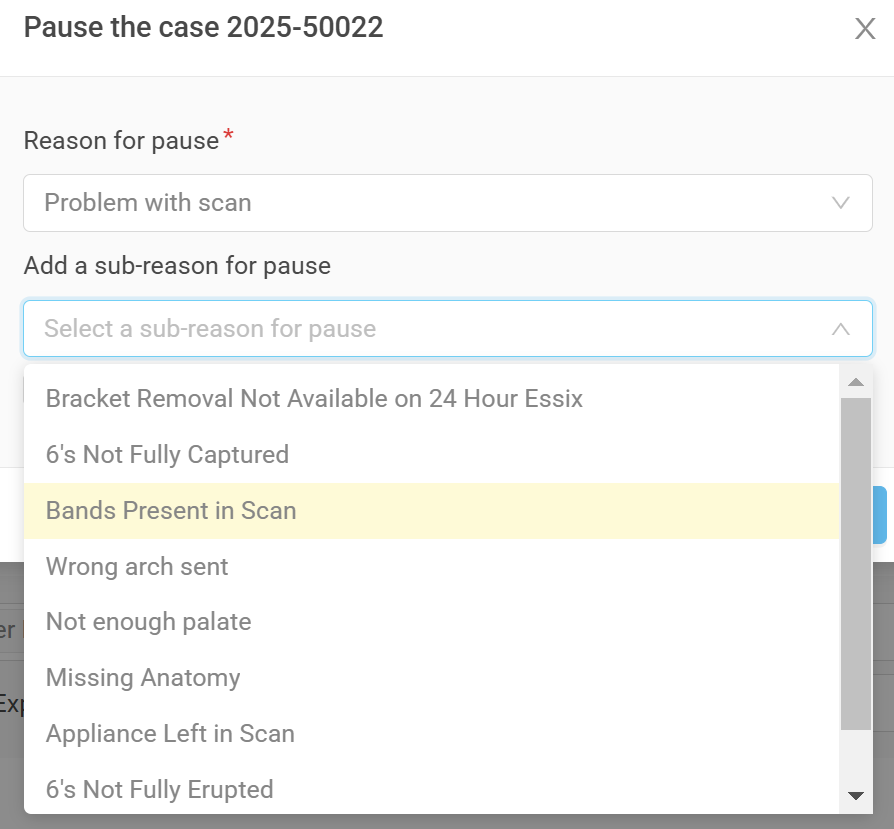
5. In the same menu, next the Sub-reason is chosen.
6. If the Sub-reason selected is an open text field, include any relevant notes. NOTE: The text entered in this field is doctor-facing. Notes should be clear, and without lab abbreviations, so that the doctor can easily understand them.
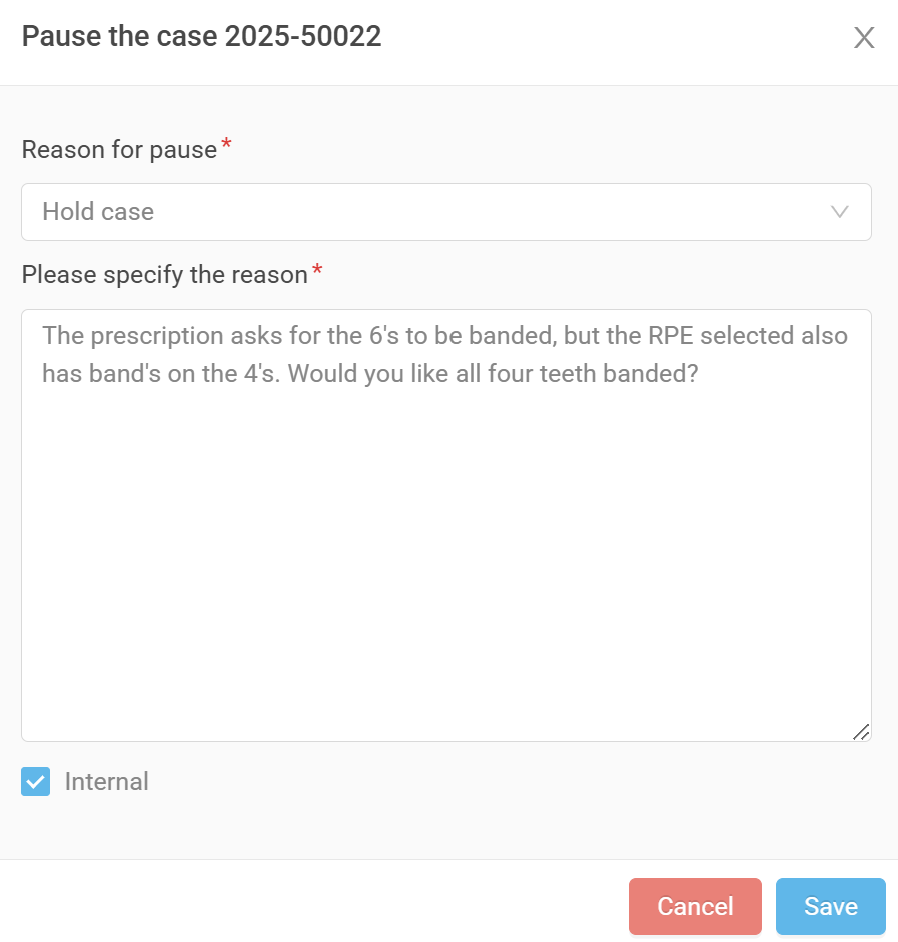 | 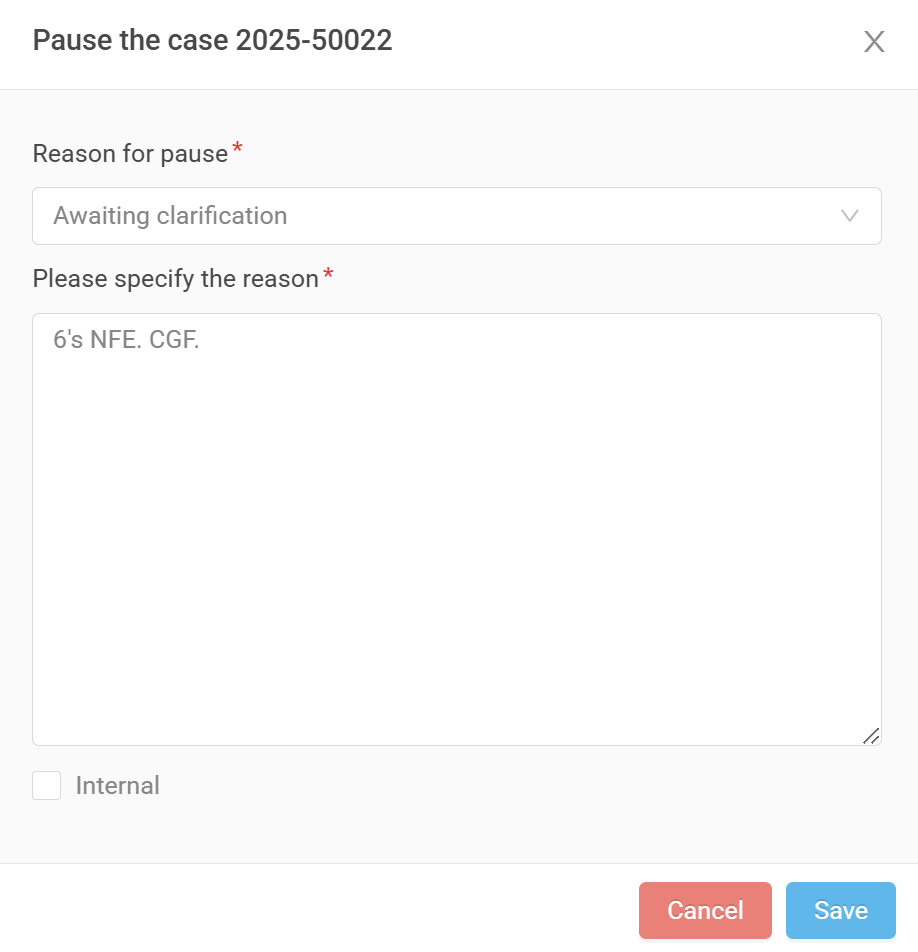 |
| Good Example | Poor Example |
7. Select save.
8. The following confirmation message will appear, and the case will now feature a Pause icon .


9. A note featuring the Pause Reason and Sub-reason are automatically added to the case in the Notes section.
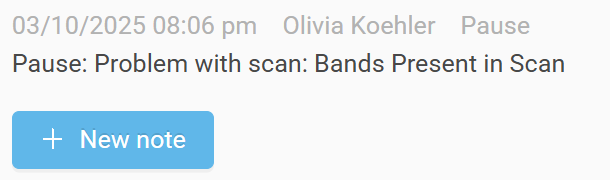
10. A new line item is automatically recorded in the Case Log.

11. If the case was in a batch, it is automatically excluded from that batch while on pause.
Unpause Reasons
Every case that has been paused must be unpaused to return it to active production. In order to note the reason the case has been unpaused, we have the following unpause reasons:
Unpause Reason | When Would We Use This? |
|---|---|
| Scan now available. | The office has sent the scan. They may have attached it to the prescription, or sent it through their scanner portal. |
| Scan problem resolved. | The office has either taken a new scan and sent it in, has |
| Bands received. | We have received the bands the doctor fit in office to accompany their case. They will have the product "Seat Doctor Provided Band" on the case. |
| Materials received. | We have received materials that were outstanding for the case. This might be a model, impression, returned appliance, waxbite, or similar. |
| Proceed with case. | We have elected to continue with the case. This may be because we heard from the office, or some internal problem was resolved and we can now continue. |
| Spoke with office. | We have received the approval from the office to continue with the case. |
| Case rescheduled. | The doctor rescheduled the Due Date of the case and we can now return it to production. |
| Other | There is another reason that we are able to move forward with this case that will be noted in the open text field. |
Unpause Workflow
Once the case problem has been resolved, we can unpause the case and move it back into active production. When a problem is resolved on a case, it is unpaused using the following workflow:
1. The case is opened.
2. From either the Edit Page or the Review Page, the Actions menu is opened in the upper right-hand corner.
3. "Unpaused" is selected.
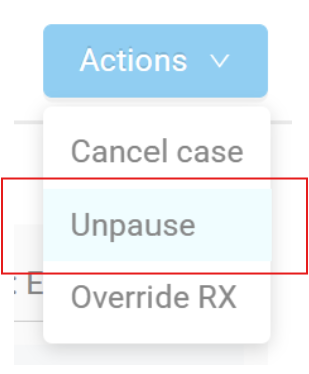
4. Select the reason for unpause from the dropdown menu.
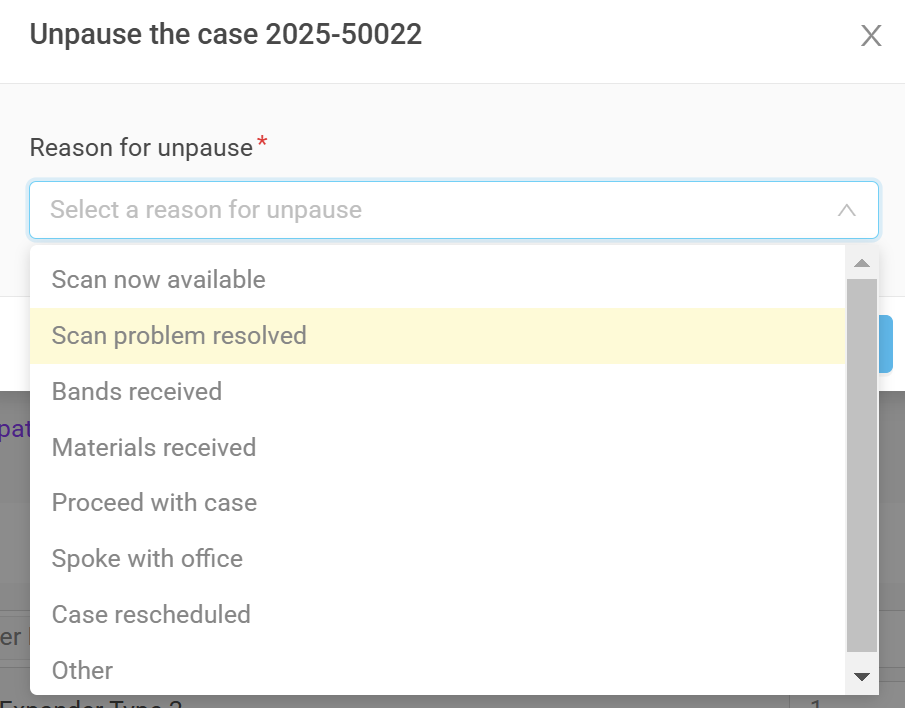
5. If the unpause reason selected is an open text field (Other), include any relevant notes.
6. Select save. You will see the following confirmation, and the pause icon will be removed from the case:

7. A dialog box will appear, asking you to verify that the Due Date is still acceptable. If the case has been paused for several days, we may need to reschedule the Due Date, which will automatically change the Ship Date.
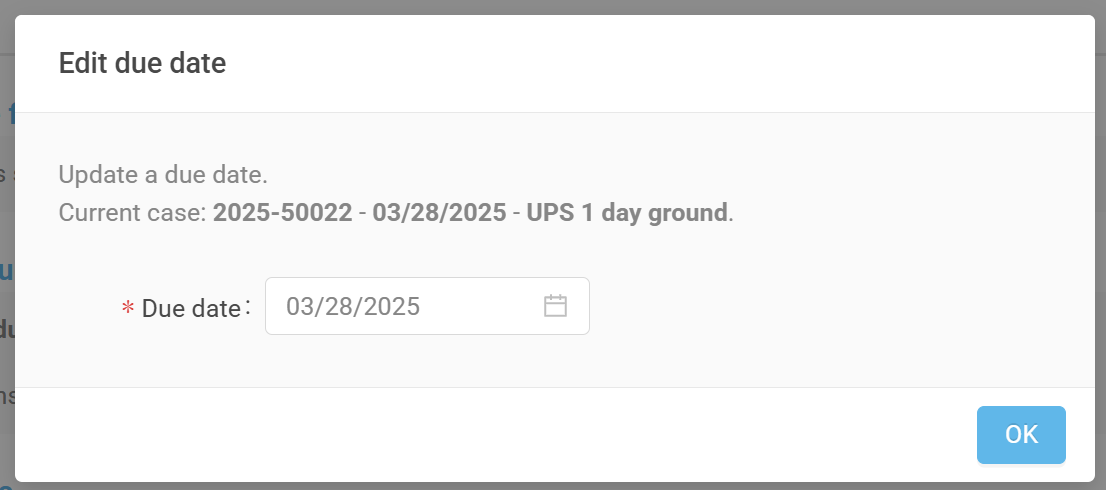
8. If you change the due date on the case, you will be prompted to reprint the work ticket.
Doctor Notifications
When a case is paused, the doctor is automatically notified. They will receive an email notification:
- At the moment the case is paused;
- Once per day for the following four (4) days.
They will receive an email based on the pause reason selected, as each email contains specific information about how to resolve the issue and return the case to production.
The emails they will receive are:
Reason | Email Notice |
|---|---|
| No Scan | 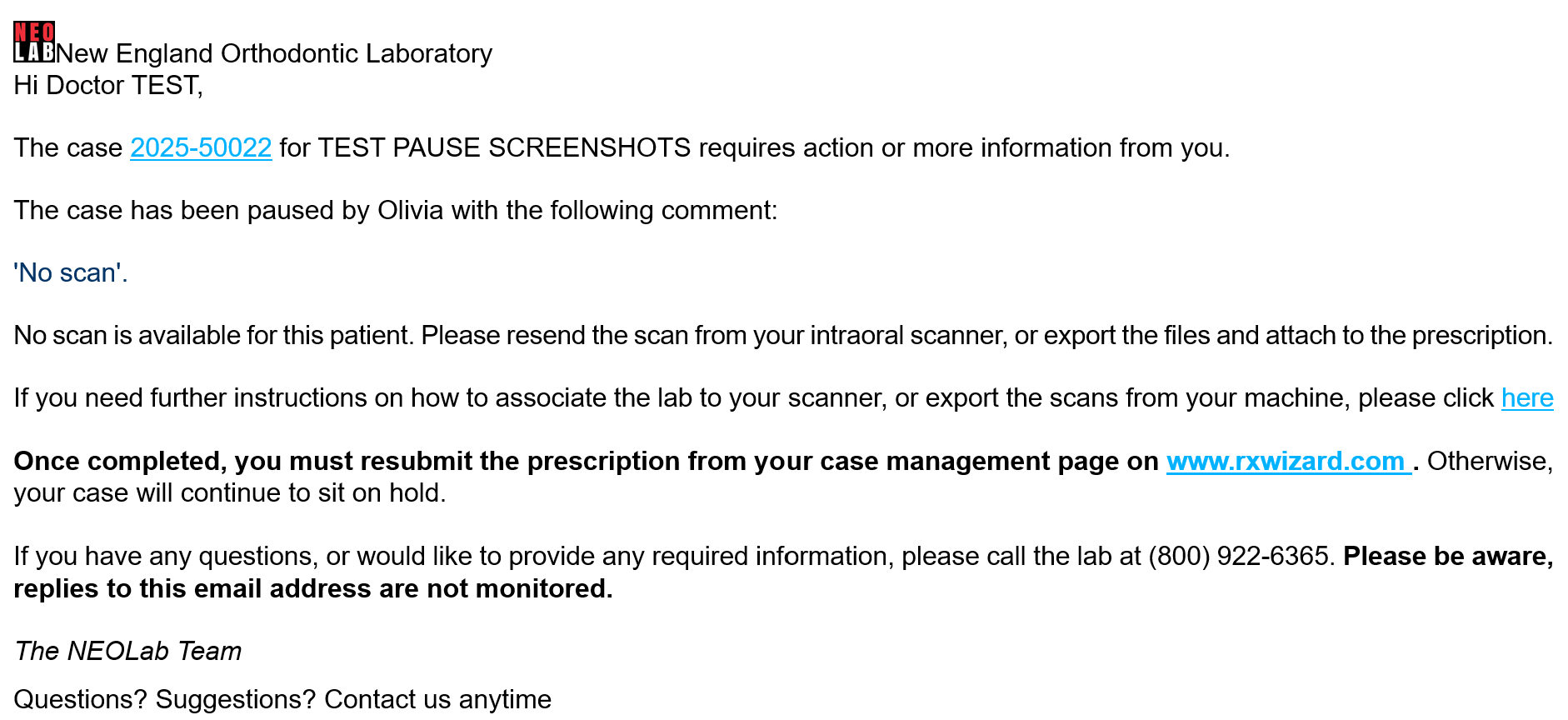 |
| Problem with Scan | 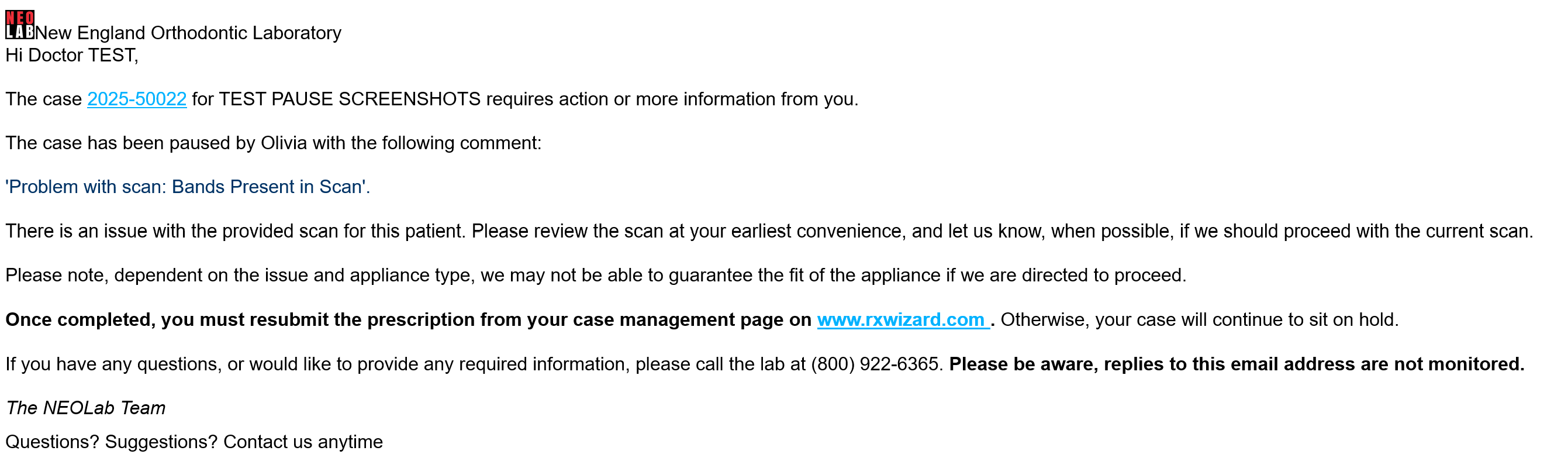 |
| Waiting for Bands | 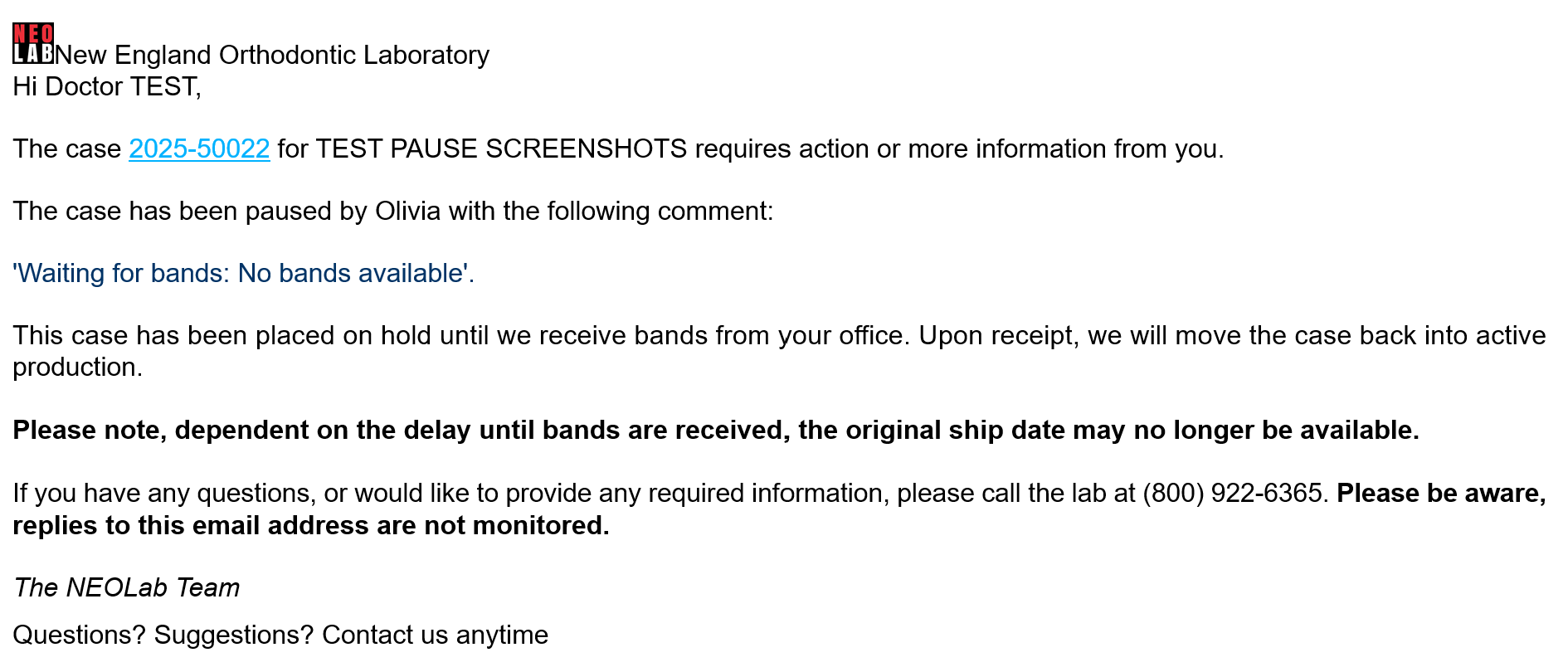 |
| Materials Missing | 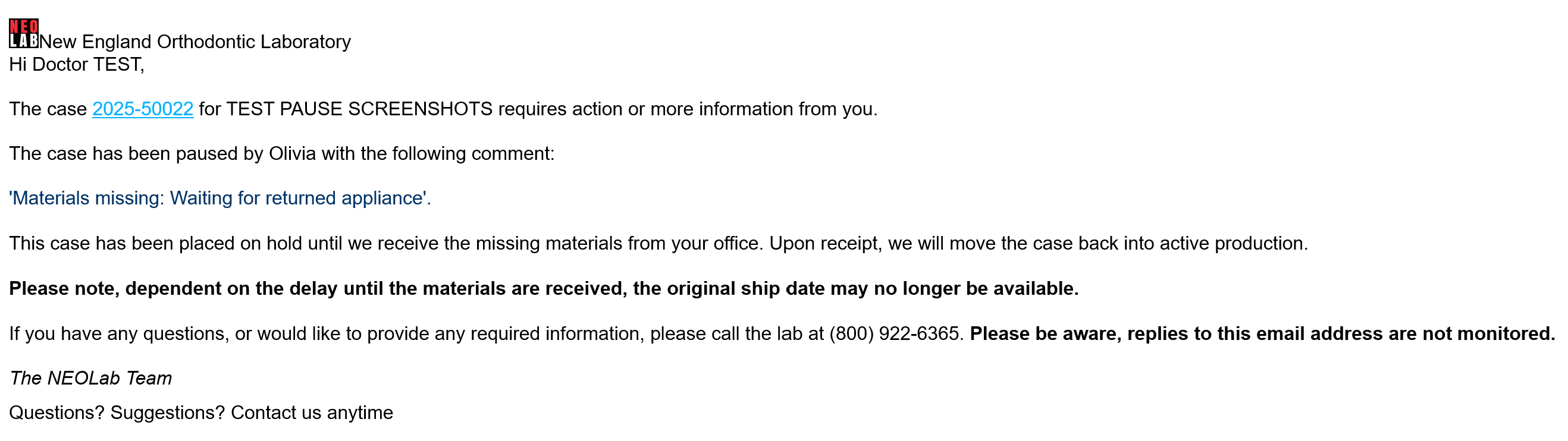 |
| Hold Case | 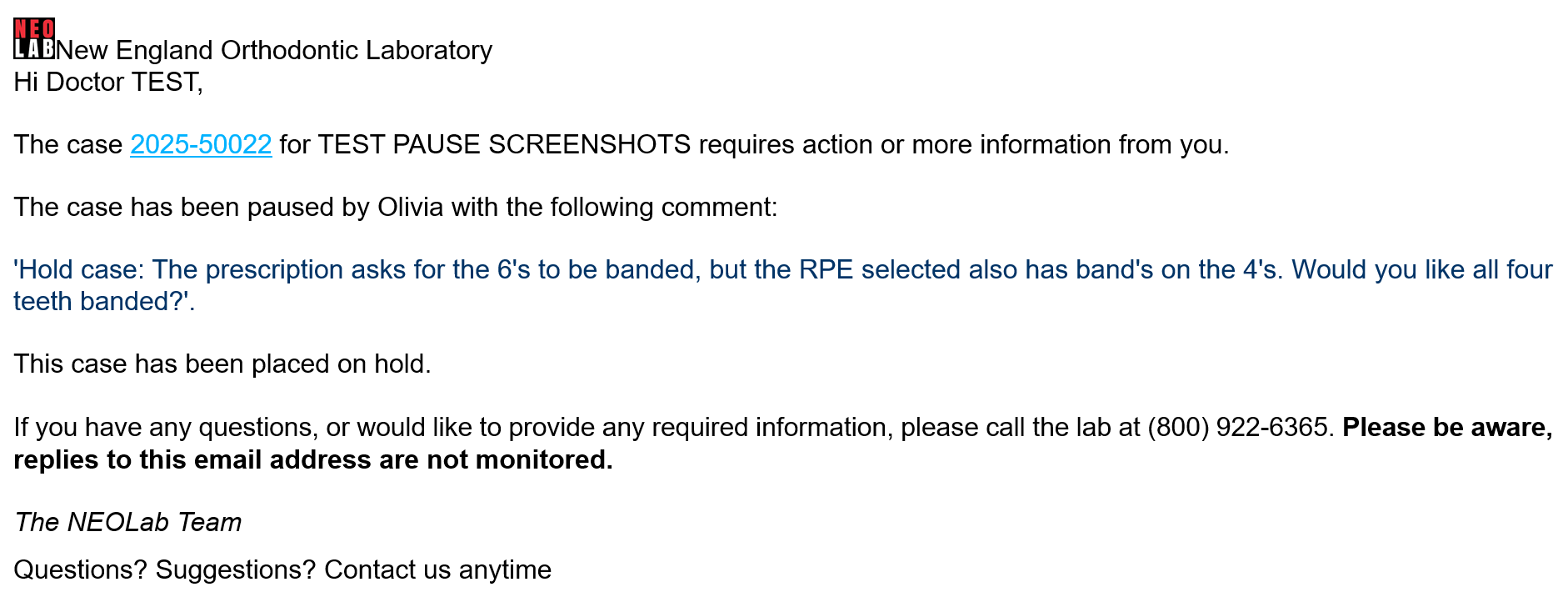 |
| Call Made to Office | 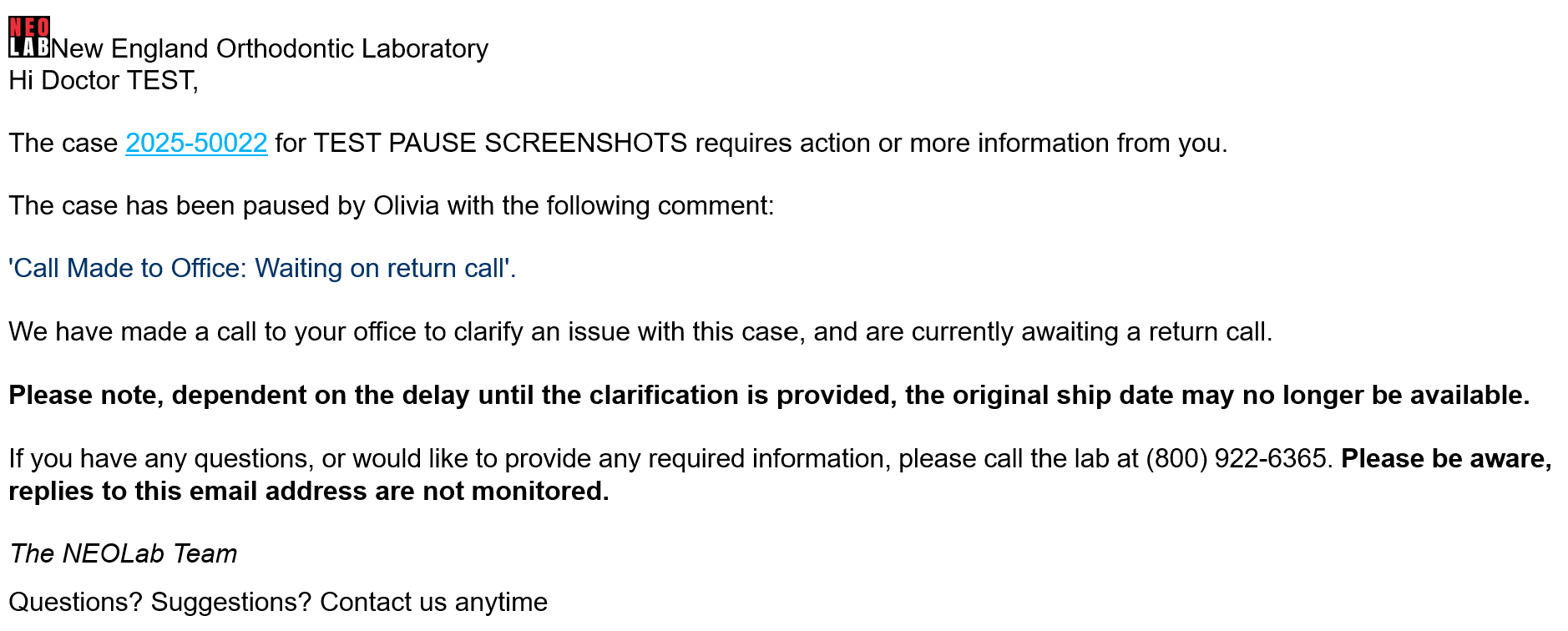 |
| Awaiting Clarification | 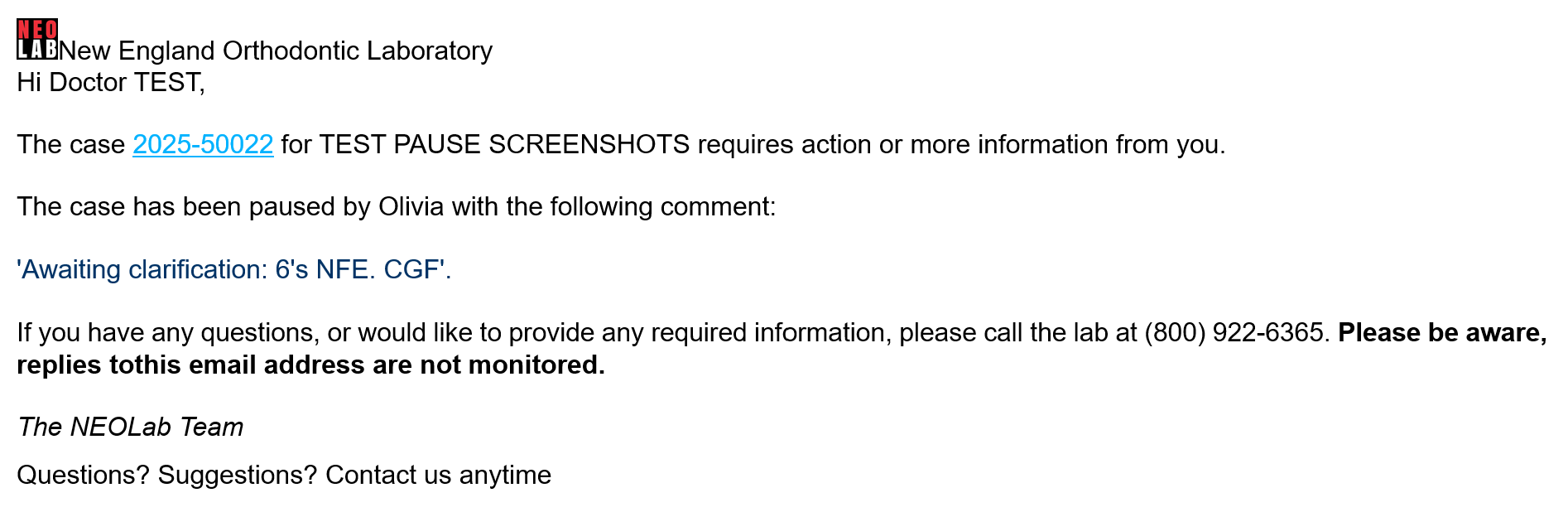 |
| Failed Internal QC | 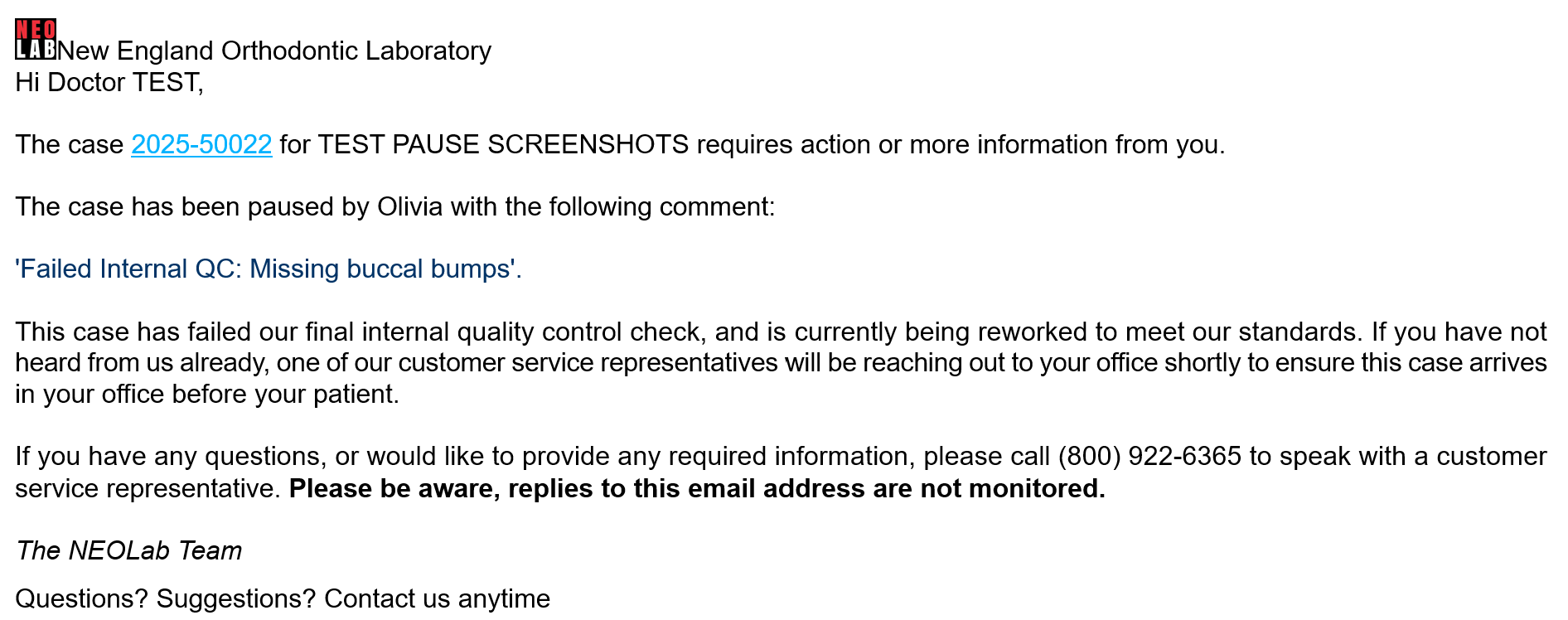 |
Doctors will also be able to quickly check for paused cases when logging into their RX Wizard dashboard. Cases that are paused will automatically be moved to the top of the active case queue, will be highlighted, and will feature a pause reason icon.
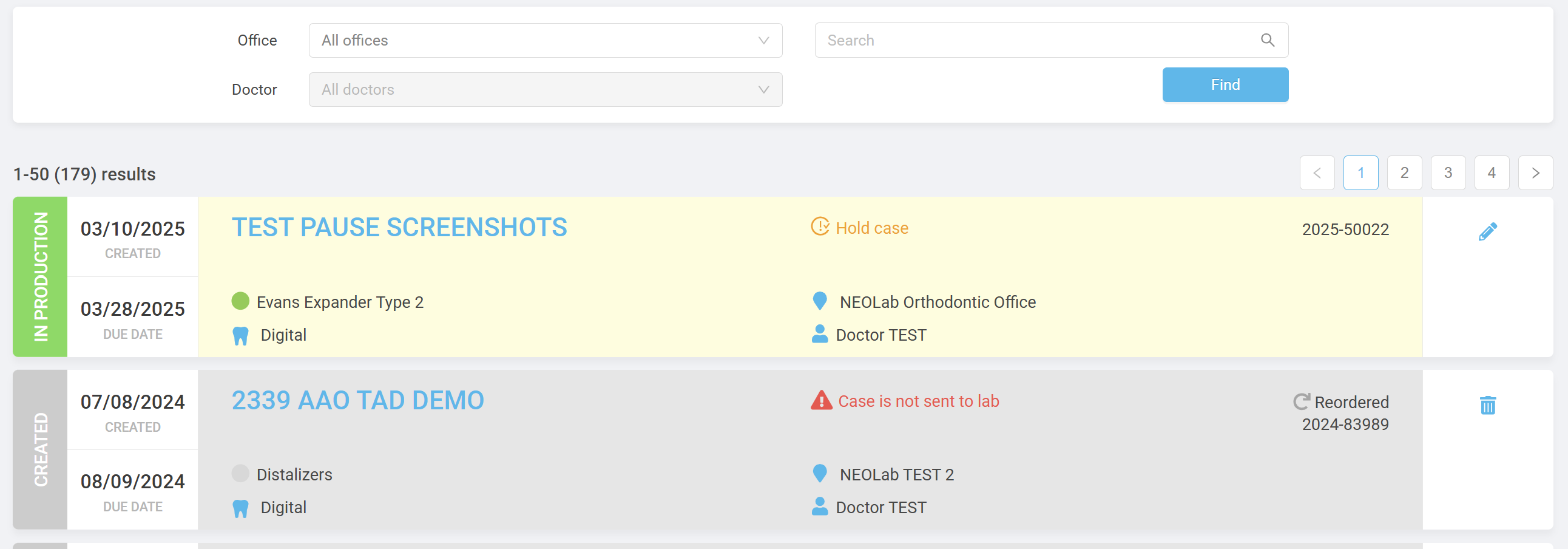
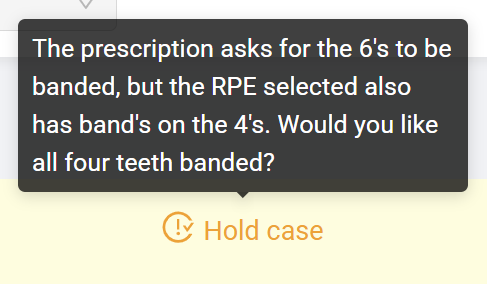
To see more information about why the case has been paused, the doctor can hover over the pause reason to see the notes added by the user pausing the case:
When the issue has been resolved, and the case has been unpaused, the doctor will receive the following email:
| Unpause |  |
Internal Pause
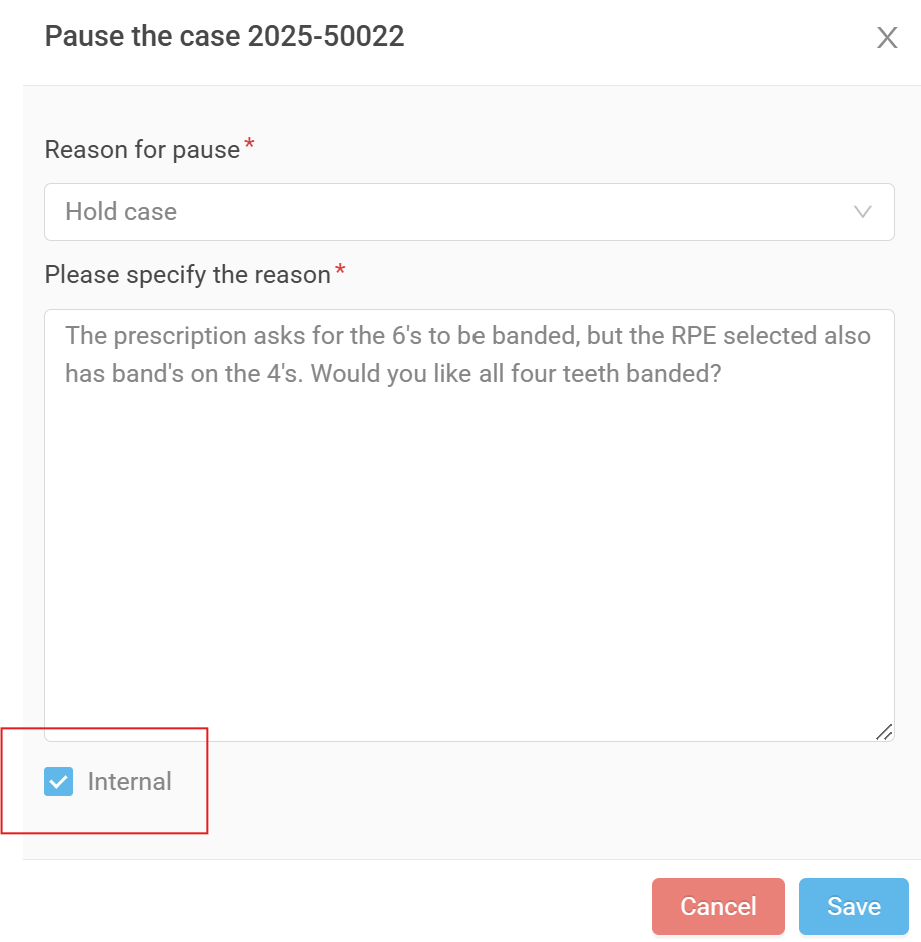
A specialty pause option is available, which will not alert the doctor the case has been removed from production. This is most useful in cases of Failed QC, where we are rescheduling the case at an expedited pace to leave the lab the following day. We don't want to alert the office there was a problem with the case before leaving, but don't want to lose track of it on the production dashboards.
To pause a case internally, the checkbox "Internal Pause" needs to be clicked when selecting the pause Reason and Sub-reason. When this button is checked, the doctor will not be notified with emails or on their RX Wizard dashboard.
Managing Paused Cases
Cases that have been paused can be managed by using the Issues tab. This will allow members of the CSR and Import teams to keep an eye on cases that have been paused for multiple days, and to follow up with offices to keep cases moving.
Specific instructions are available in the Issues Tab article.
Was this article helpful?
That’s Great!
Thank you for your feedback
Sorry! We couldn't be helpful
Thank you for your feedback
Feedback sent
We appreciate your effort and will try to fix the article