Preferences are an integral part of appliance manufacturing. These instructions are doctor-specific and outline very particular ways in which these doctors want their appliances made. Preferences should be considered with equal weight to the prescription.
TABLE OF CONTENTS
- Preference Color Coding
- Preference Storage
- Preferences on a Case
- Requesting a New Preference
- Requesting a Preference Change
- Requesting a Preference Removal
- Preference Change Log
_____________________________________________________________________________________________________________________________________
Preference Color Coding
Preferences are color coded by department for easy identification. While this system is strictly no-longer necessary, given that products can be sorted by other methods now, departments and supervisors have indicated this is the method they prefer, and therefore, it has been incorporated into our newest iteration of preferences.
The following preference color coding indicates that they are applicable for the following departments:
| Black text, yellow highlight | Global preferences that are always visible. These mostly apply to the customer service team, or general account information. |
| Black text | Digital, Digital Import, and CAD Design. |
| Green text | Fixed prep. |
| Red text | Removable prep. |
| Blue text | Fixed and Laser Weld/Solder. These preferences are viewed by two departments that work closely together. |
| Orange text | Removable. |
| Purple text | Acrylic. |
| Grey text | Grinding. |
| Brown text | Essix. |
| White text, black highlight | QC/Ship, or specific to Herbst appliances. |
Preference Storage
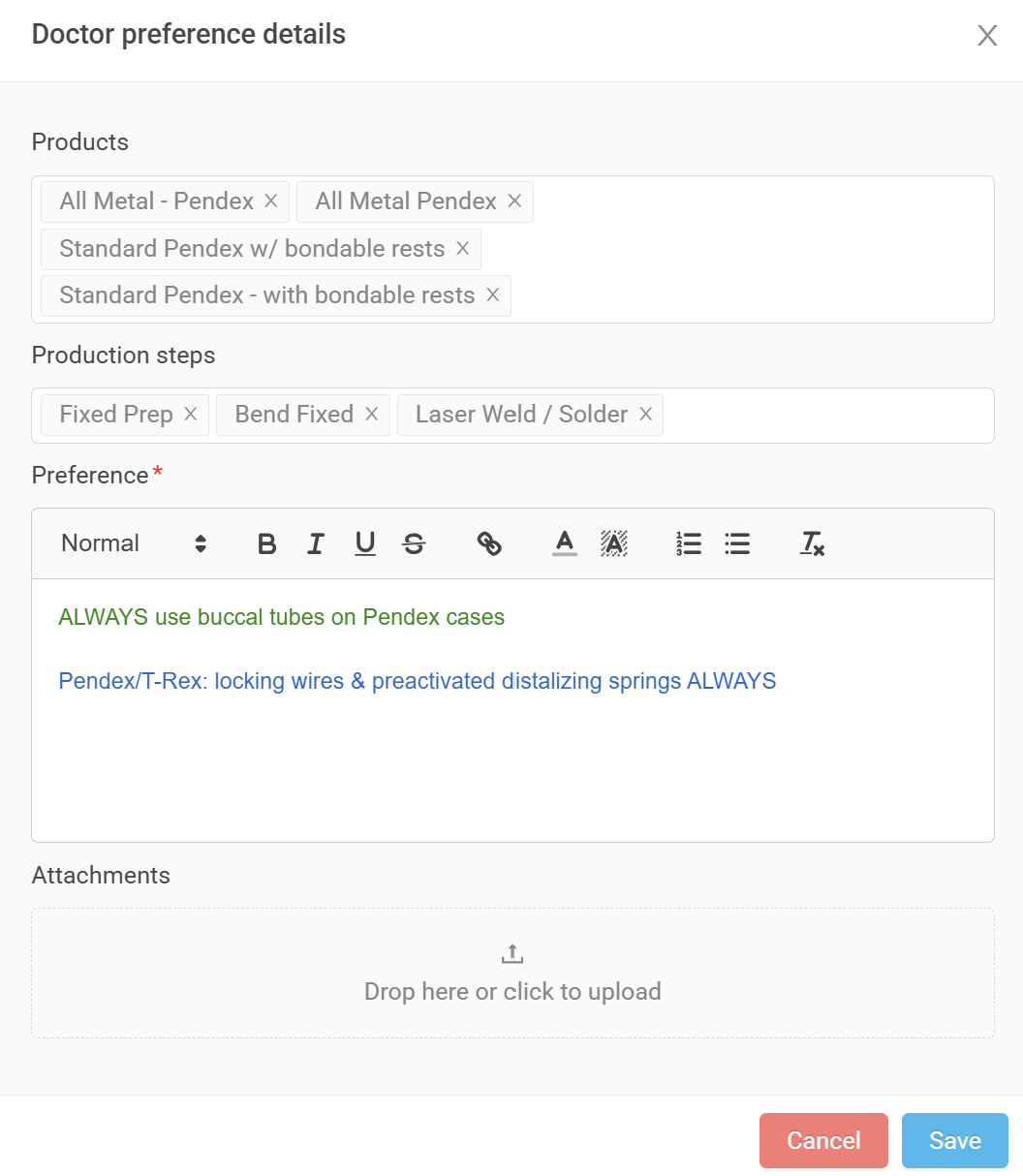
Preferences are stored and managed within RX Wizard. They are organized by product and/or production step, and stored by individual doctor. An office with several doctors may have several different sets of preferences for the same appliance!
First, preferences are color coded. This will help technicians in varying departments quickly find preferences that apply to them, especially in the case like the example below where two departments have preferences for the same appliance.
Next, preferences are associated to applicable production steps. This is redundant, given the color coding, but ensures that preferences for Fixed cases won't show up on Removable cases, and vice versa. This helps reduce the amount of information that has to be read on each case. In the example below, the preferences are specific to the Fixed Prep, Fixed, and Laser Weld departments, and so their applicable production steps have been added.
Finally, preferences are associated to products, if applicable. Sometimes preferences are general to a type or category of appliances (like habit breakers, instead of a specific Palatal Bump Crib), and sometimes they are specific to an individual appliance. In the example below, the preferences are specific to Pendex appliances, and so all pendex products have been added.
Preferences on a Case
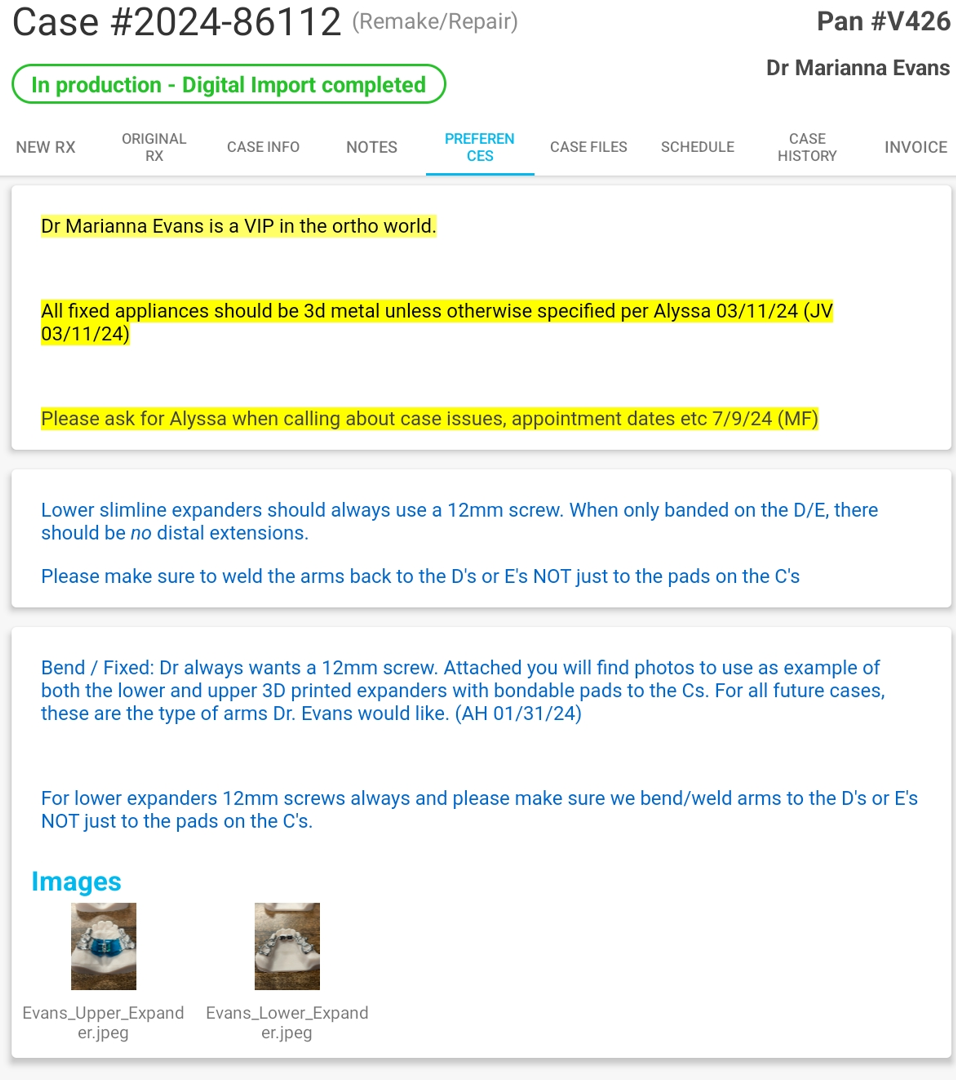
Preferences are stored and organized as they are so that only relevant information appears on each case, and at each step.
Global preferences will always be visible to all users.
Technician Roles
You will only be able to see preferences that are associated to products on the case, and to your assigned production steps. If there is no preferences tab available on your tablet, there are no preferences that apply to this product at your step.
Web Technician Roles
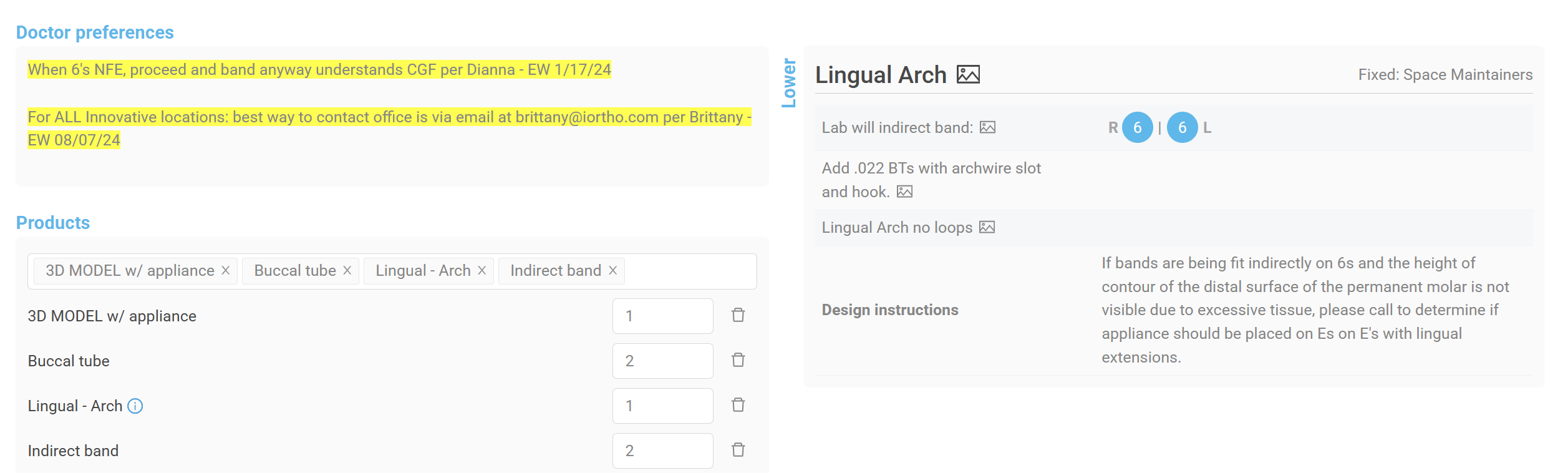
You will only be able to see preferences that are associated to products on the case, and to your assigned production steps. You will be able to see these preferences at any time in production.
This user has only been assigned production steps related to Essix products, and cannot see any preferences associated to Lingual Arches or Fixed production steps.
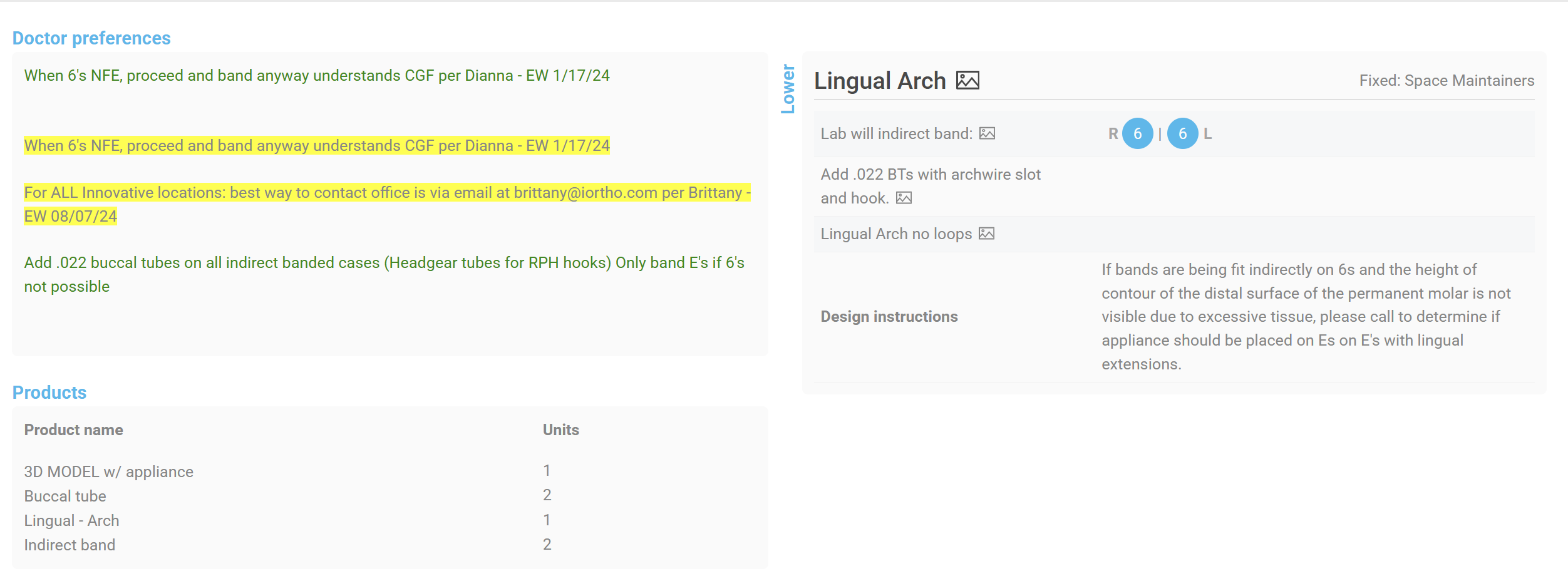
The user was updated and assigned the Fixed Prep step, and new preferences appear on the same case.
NOTE: QC Technicians
QC Technicians have been granted access to every single production step, and will see all preferences related to the case for verification purposes.
CSR Roles
You will be able to see all preferences associated to the product or the production steps applicable to this case. You will be able to see these preferences at any time in production. In the example below, only preferences that apply directly to Lingual Arches or to the production steps associated with this particular case will appear.
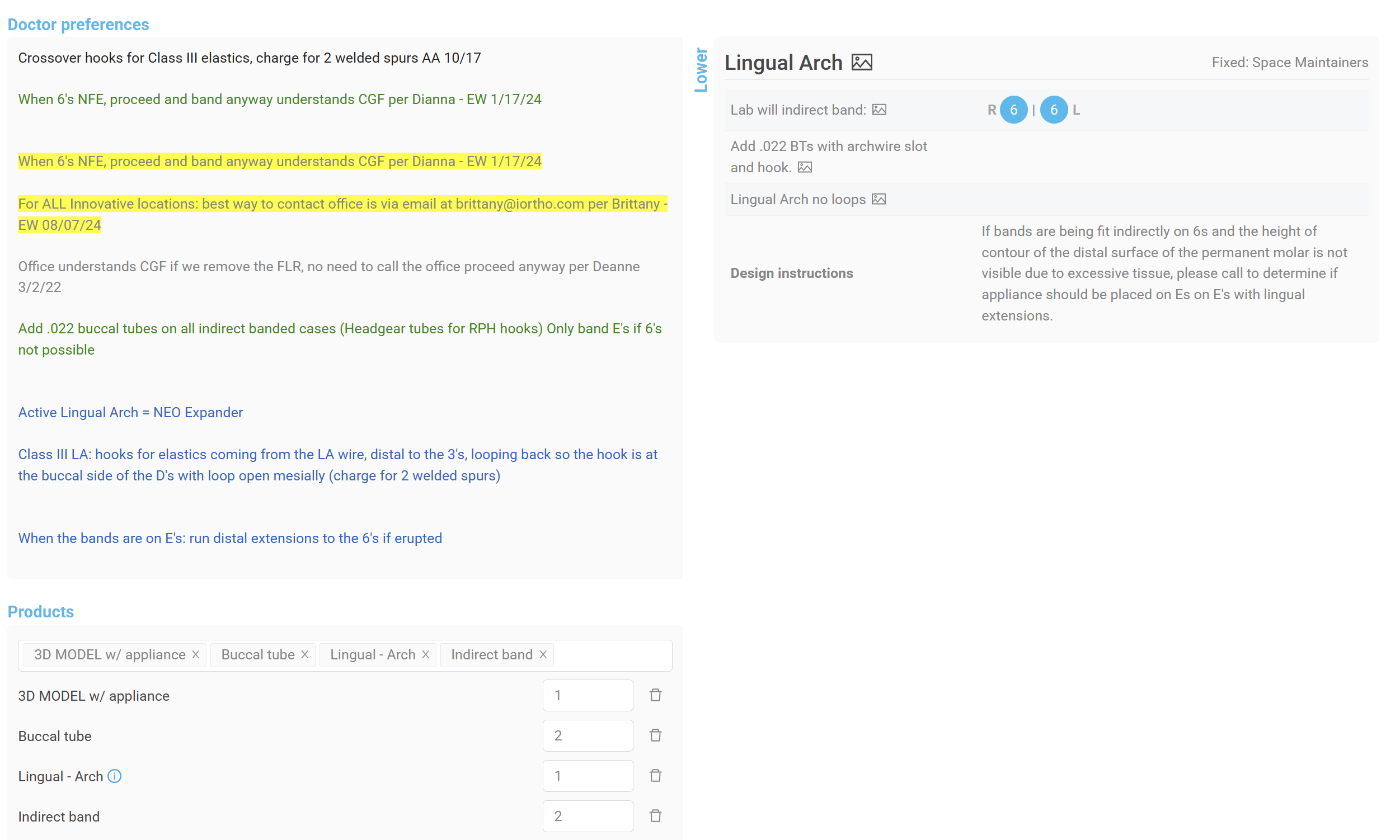
Manager Roles
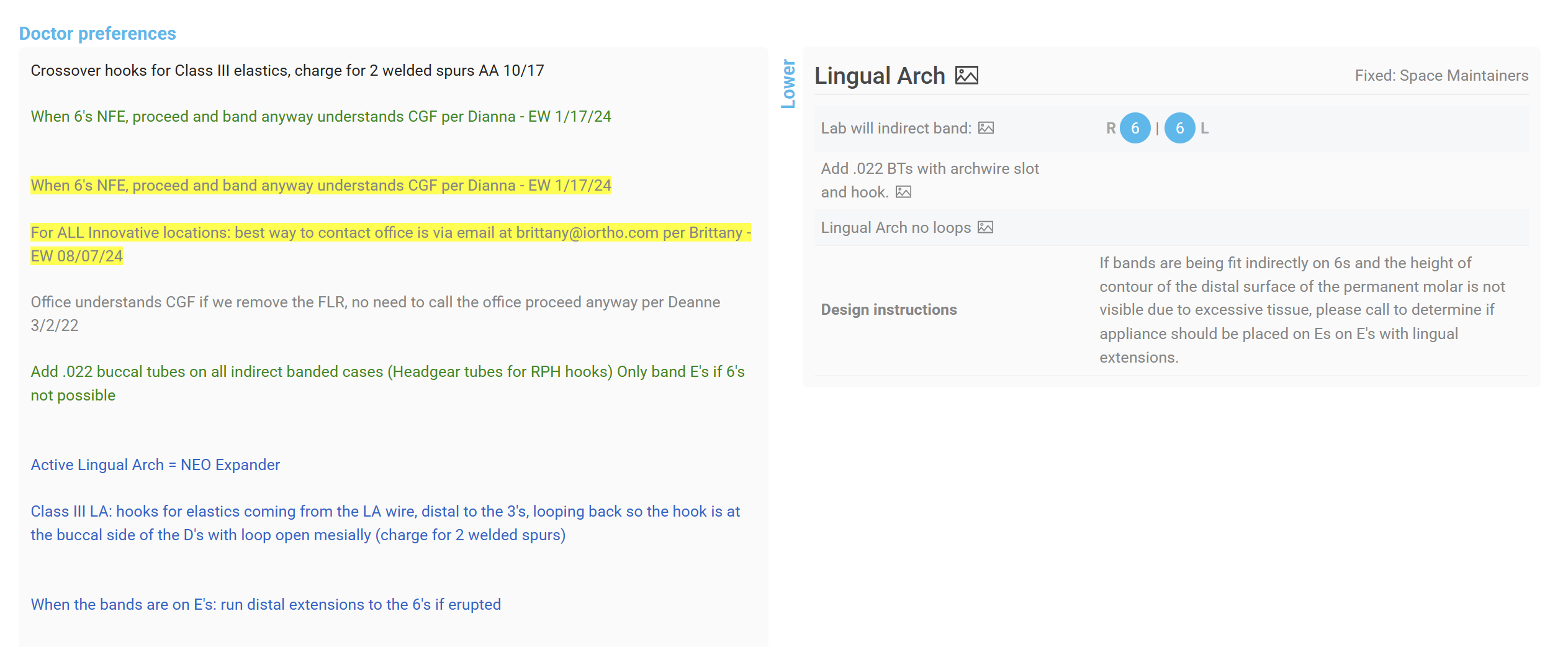
You will only be able to see preferences that are associated to products on the case, and to your assigned production steps. You will be able to see these preferences at any time in production. Because manager roles tend to have many assigned steps, you may see more preferences than the technicians in your department.
For example, this manager has been assigned the production steps: Digital Prep, Fixed Prep, Bend Fixed, Laser Weld/Solder and Finishing, and sees the following preferences. If their technicians only have the Bend Fixed step, they will see only the global preferences and the preferences in blue.
Admin Roles
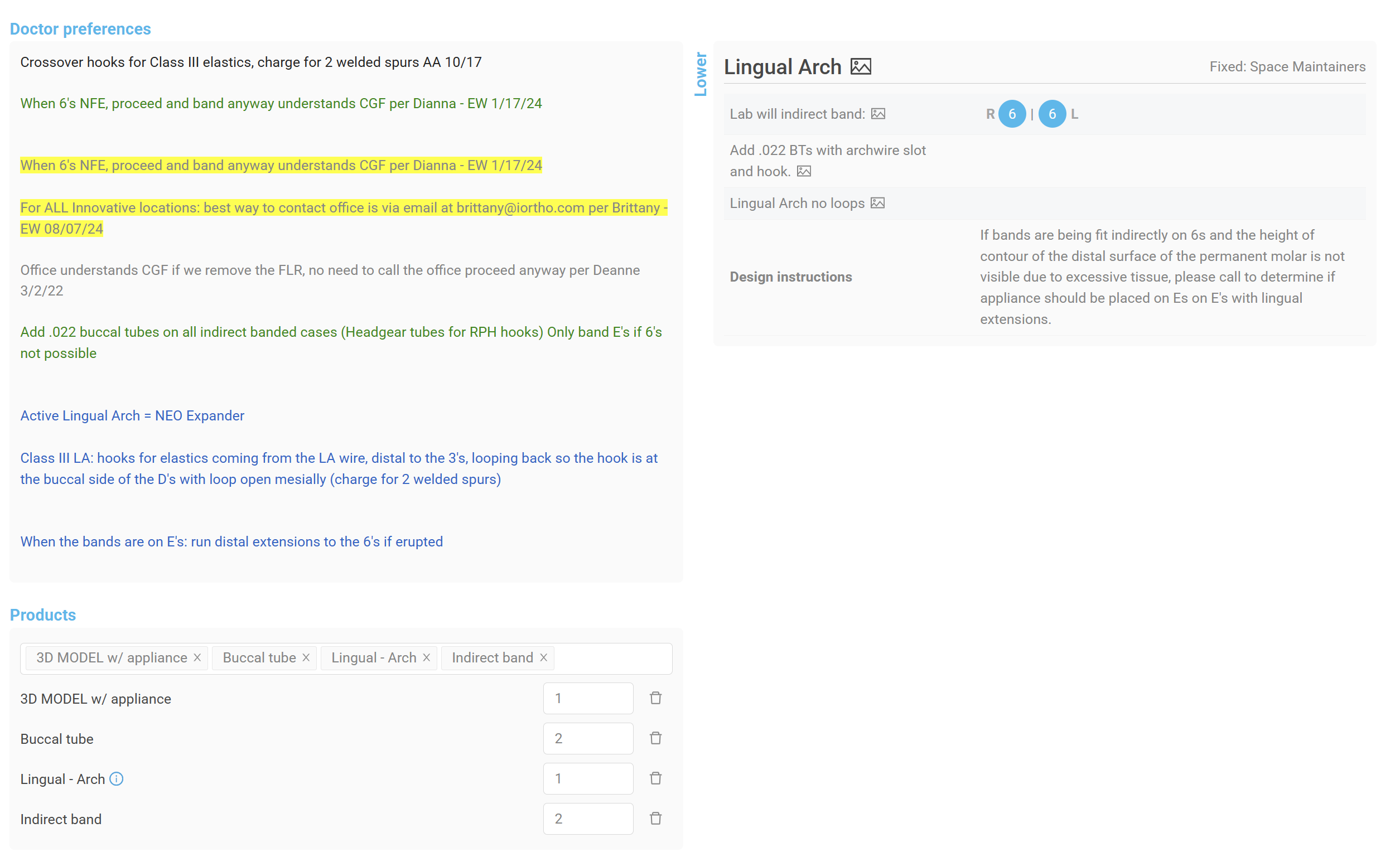
You will be able to see all preferences associated to the product or the production steps applicable to this case. You will be able to see these preferences at any time in production. In the example below, only preferences that apply directly to Lingual Arches or to the production steps associated with this particular case will appear.
Requesting a New Preference
Doctors may add preferences to their account at any time, we may notice a repeated ask from a doctor that should be stored as a preference, or we may find information that should be stored in their account (like where their scans are usually found). In any of these cases, you can request that a preference should be added to an account using the link in the NEOLab Employee Portal.
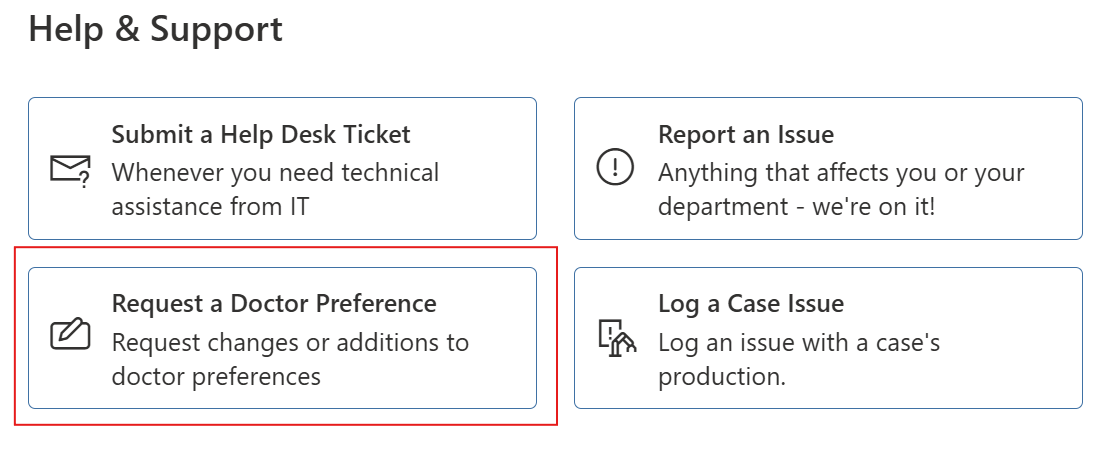
Click on the link and fill in the form.
| Field | Prompt |
 | Fill in today's date. This field is required. |
 | Add the doctor's name. You do not need to add "Dr.". This information is key, because preferences are stored individually, by doctor. This field is required. |
 | Add the office name. Doctors can be associated with more than one office, so if this preference is applicable for all their offices, be sure to add all office names here. If the preference is only for a certain office, add only that office name. This field is required. |
 | Add a case number, if you have one. Sometimes, individual cases reference specific instructions or images that should be stored. This field is optional, so if you don't have a case number, you can skip it. |
 | Add the applicable department(s). Who should see this preference in production? This may be a single department, or several. This field is required. |
 | Add the preference text. What should the preference say? For the most part, text entered here is copy/pasted into the doctor's account, so word the preference in a way that technicians in the applicable departments will understand. Not sure what to put here? Let us know it might need some adjustment. Describe the preference as best as possible, and we'll contact you if clarification is needed. Your initials and date will be added to the end of the preference for traceability. |
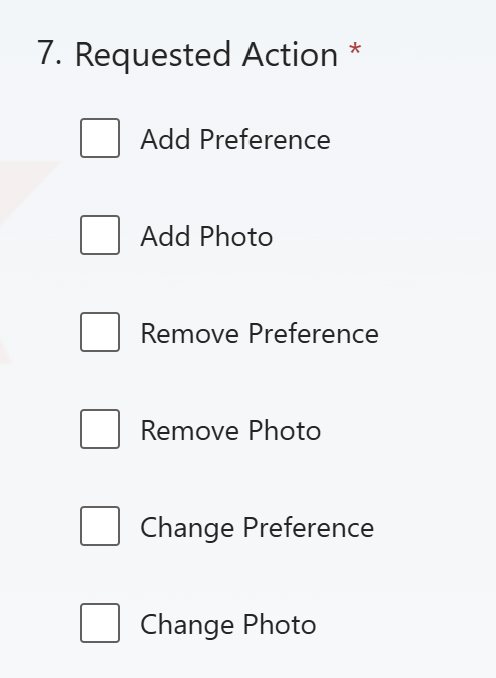 | Check what type of request this is. You may choose multiple options, if applicable. - Add Preference: We're adding a totally new preference. - Add Photo: There's a photo that should be added to the new preference, or a new photo that should be added to an existing preference. - Remove Preference: An existing preference should be deleted. - Remove Photo: An existing photo should be deleted. - Change Preference: An existing preference should be changed, and the change is described in section 6. - Change Photo: An existing photo should be swapped for another one. |
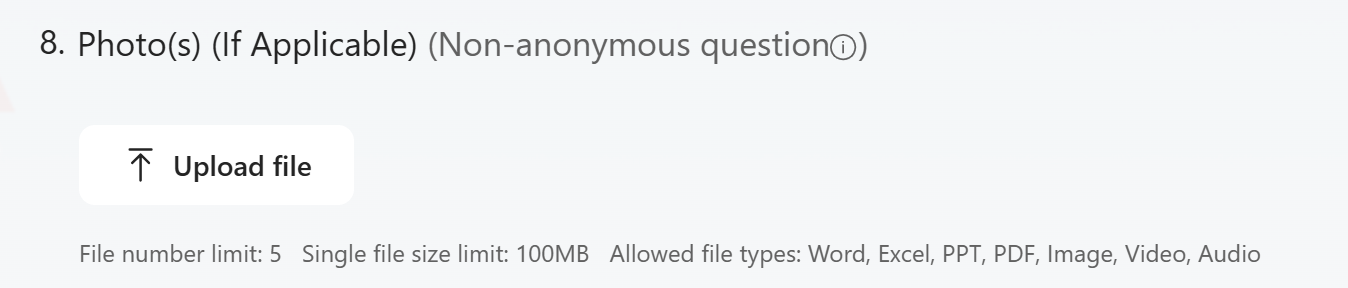 | Add photos and/or files, if you have them. If you've indicated that pictures or other files should be added or changed, upload them here. You can add up to 5 photos, with an individual size limit of 100MB. |
Once you submit the form, it will be added to a preference change log, which is manually checked and managed daily. Your email and name will be submitted along with the form, in case there are any questions.
Requesting a Preference Change
Preferences may change over time, and we can accommodate changes to them.
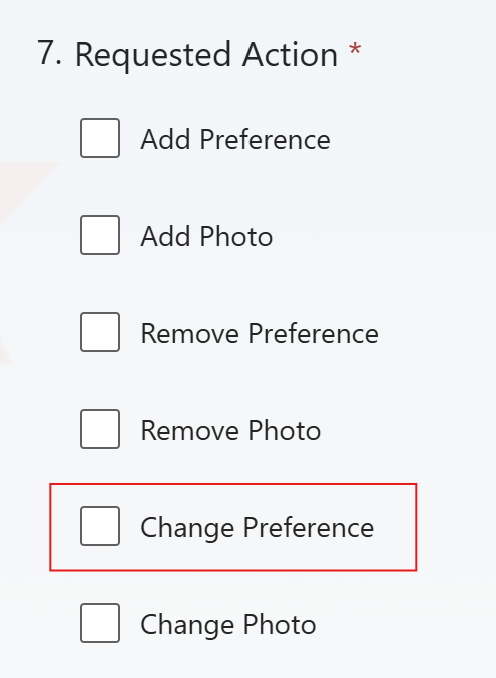
To request a preference be changed, follow the same instructions in the "Requesting a New Preference" section, simply clicking on the "Change Preference" checkbox in section 7.
Requesting a Preference Removal
Preferences may change over time, and sometimes are no longer necessary.
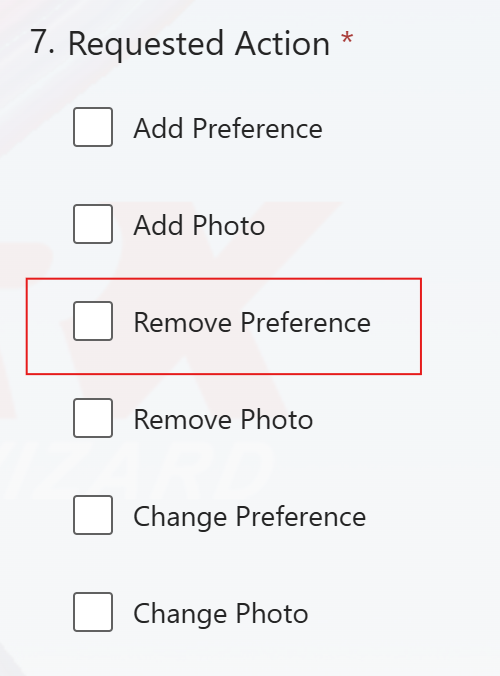
To request a preference be removed, follow the same instructions in the "Requesting a New Preference" section, simply clicking on the "Remove Preference" checkbox in section 7.
Preference Change Log
Weekly, an automatic email is delivered to all NEOLab team members that describes the preference adds, changes, or deletions made over the course of the previous five business days.
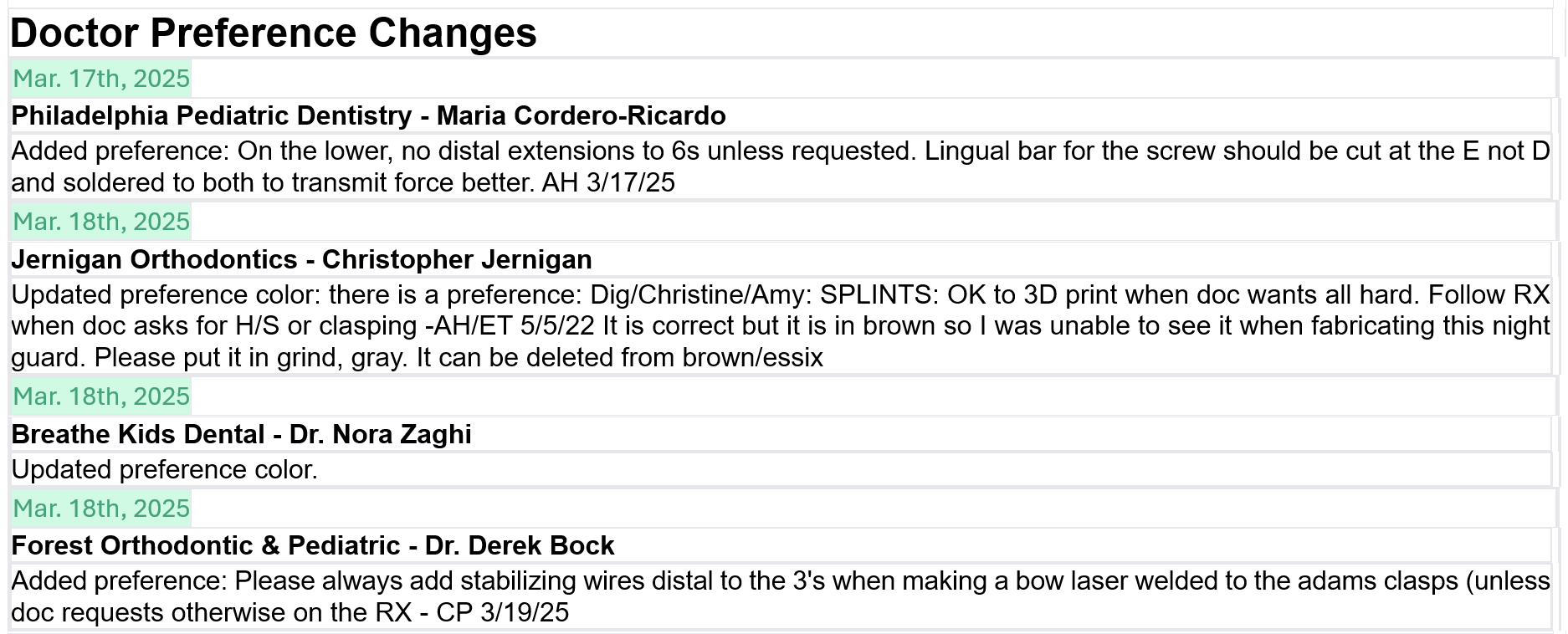
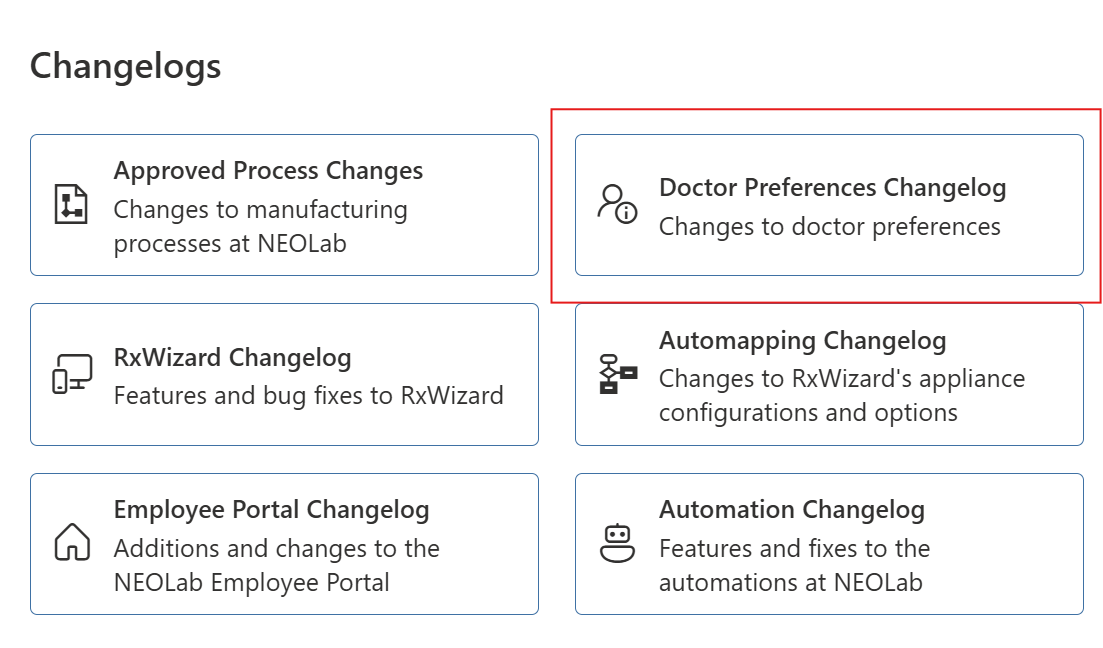
This information can also be accessed at any time in the Employee Portal, under the Changelogs section.
Was this article helpful?
That’s Great!
Thank you for your feedback
Sorry! We couldn't be helpful
Thank you for your feedback
Feedback sent
We appreciate your effort and will try to fix the article