New accounts are constantly joining NEOLab. In order for an office to submit prescriptions, they will need to have at least a user set up for the doctor to submit from.
User Types
Accounts for office are considered "external users", or users outside of NEOLab. There are two types of users for offices to have in RX Wizard:
| Doctor | Doctor accounts have the most functionality. These accounts can have templates created and saved under their name, can have preferences saved under their name, and can be associated to multiple offices. These accounts, by default, can submit prescriptions. |
| Office Admin | Office Admin accounts have more limited functionality, by default. They cannot be associated to preferences or have templates saved under their name, but they can be permitted to submit prescription on behalf of a doctor, if default settings are changed. |
Creating a New External User
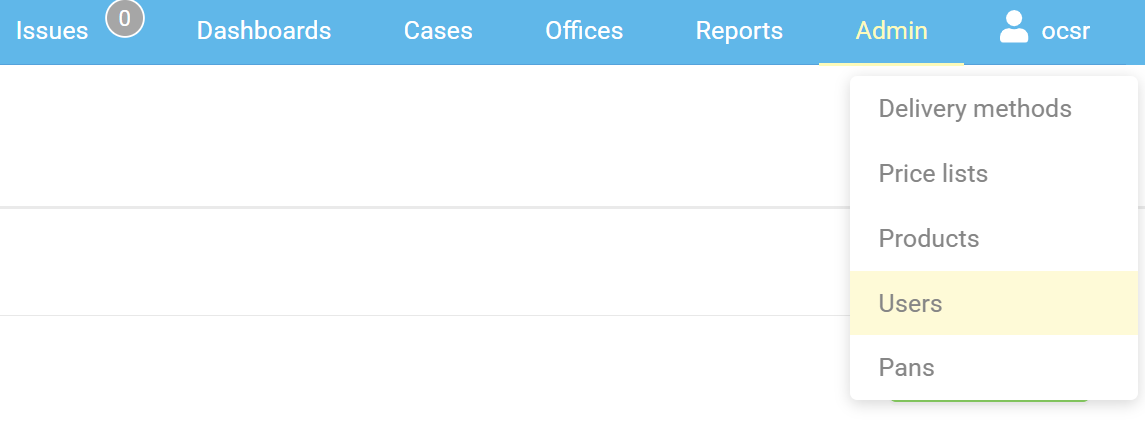
In the upper right-hand side of the title bar, choose the "Admin Menu", and then select "Users".
Click the green "New User" button on the upper right-hand side of the screen.
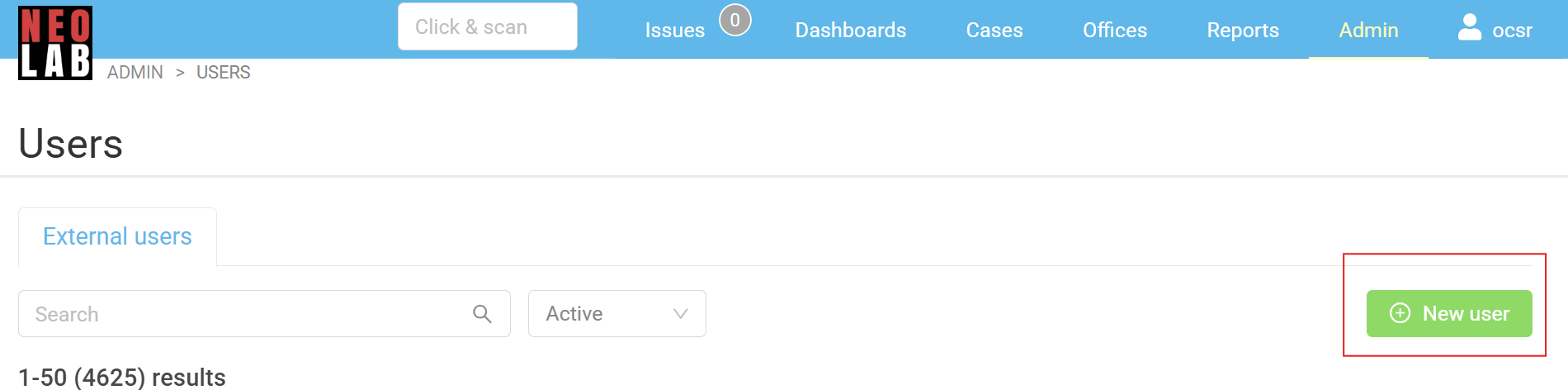
The "New External User" page will open, which has a number of fields, including:
- General
- Login Info
- Settings
- Doctor Preferences
- Email Notifications
General
The General section covers basic information, like user name:
 | This optional field can be used for titles like Dr., Mr., or Mrs., if needed. |
 | Enter the user's first name. The first name is considered a given name |
 | Enter the user's last name. The last name is considered a family name or surname. |
 | Enter the user's email. While they won't use this email to login, they will use it in the event they need to reset their password, and it will be used for other RX Wizard functions, like pause notifications and communications with the lab. Multiple email addresses may be added, if needed, using the "Add email" button. |
 | If the user is a doctor, enter their license number. This field is not required for Office Admin roles. |
Login Info
Next, add the login information:
 | Enter the login credentials. Typically, this is first initial plus last name. For example, Mary Smith would be msmith. If you enter a login name that has already been assigned to another user, you will get an error message. In this case, we can use marysmith, from the example above. |
Settings
Now, we'll choose what type of role this user will have.
 | Select the role. Your choices are Doctor or Office Admin. |
 | Add the associated office(s). Users can be added to one single office, or multiple locations. |
If the user role selected is Doctor, the field Doctor Preferences will appear. This section will be left blank during User setup.

Email Notifications
Both Doctor and Office Admin users have access to the Email Notification settings section.
Users can set their notifications however they like once their account is setup, but we can also modify these fields during user setup. We always recommend that the checkbox for "There is a Problem with my Case" is checked. Otherwise, they will not be notified when one of their cases is paused, and has been pulled out of production. If this particular checkbox is unchecked, a note with the date will be added to their account.

We find that typically doctors remove the check for "Receive a daily email of my lab activity", but leave the others enrolled.
Was this article helpful?
That’s Great!
Thank you for your feedback
Sorry! We couldn't be helpful
Thank you for your feedback
Feedback sent
We appreciate your effort and will try to fix the article