For users with a Desktop role, changing your password is simple.
Once logged in, navigate to to the upper right-hand corner and select your username. This is accessible from any page within RX Wizard.
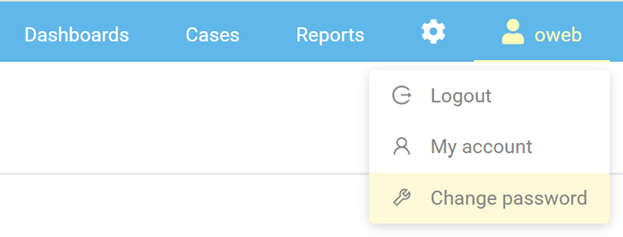
To update your password:
- In the menu that appears, select "Change Password".
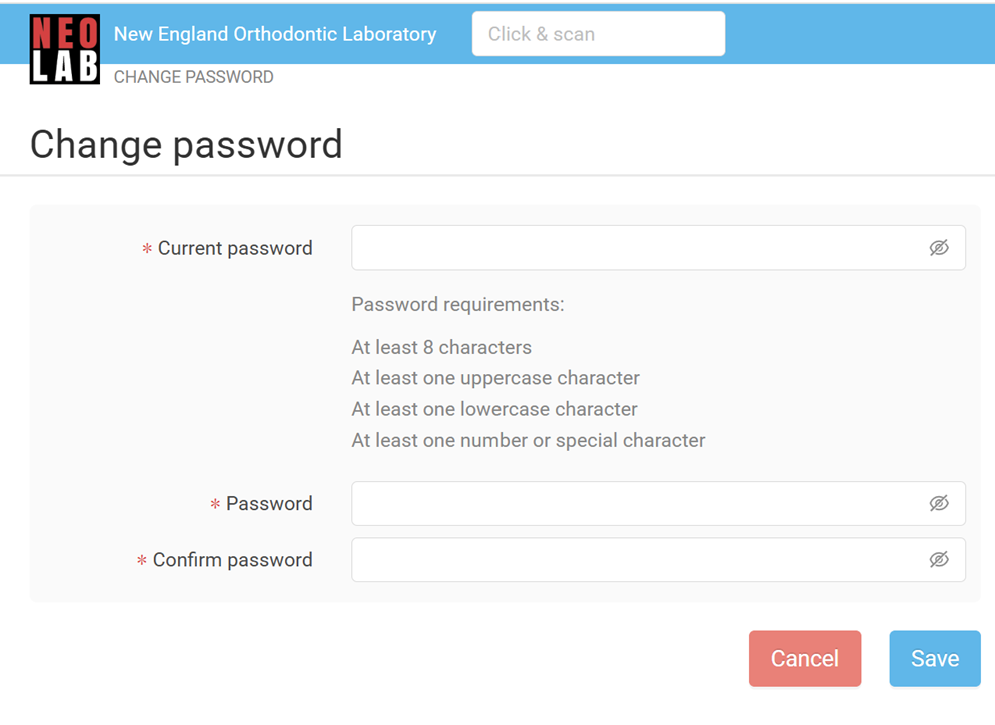
- You will be brought to the Change Password page (below).
- Enter your current password to verify your identify.
- Enter your new password.
- Confirm your new password by retyping.
- Select Save.
If needed, click the eye icon to view the characters that make up your password.

If you need to reset your password, because it was forgotten, see the article for Reset Password.
Was this article helpful?
That’s Great!
Thank you for your feedback
Sorry! We couldn't be helpful
Thank you for your feedback
Feedback sent
We appreciate your effort and will try to fix the article